¶ Storyboard
A storyboard (or story) is a saved sequence of 3D scenes, each with a title and a description. Use it to walk colleagues through the structural details that matter, for example a binding mode or a key interaction.
Storyboards belong to a project. Everyone with access to the project can view them.
Where to find it: the Stories tab of the Collections panel, with a project open in the Workspace.
Requires: a project open in the Workspace. Without one, the Stories tab is not available.
Storyboard is a beta feature. Once a storyboard is saved, its scenes can't be edited: you can only view and share it. Plan all scenes before you click Save. This will change in an upcoming release.
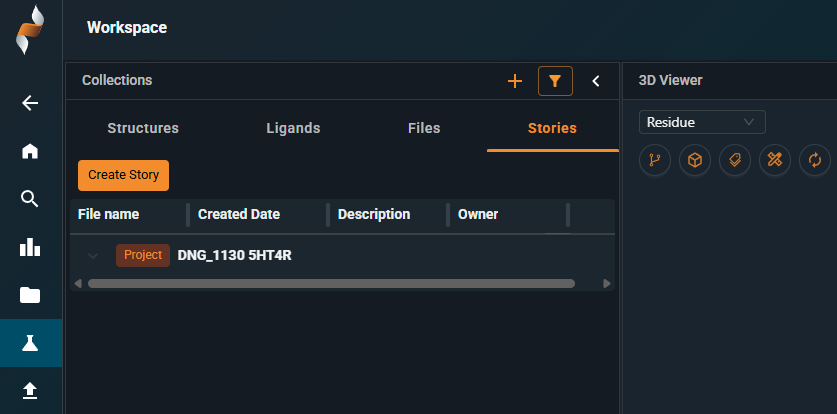
¶ Stories tab
| Control | What it does |
|---|---|
| Create Story | Starts a new storyboard in edit mode. |
| Story row ⋮ → View | Opens the storyboard in view mode. |
¶ Edit mode
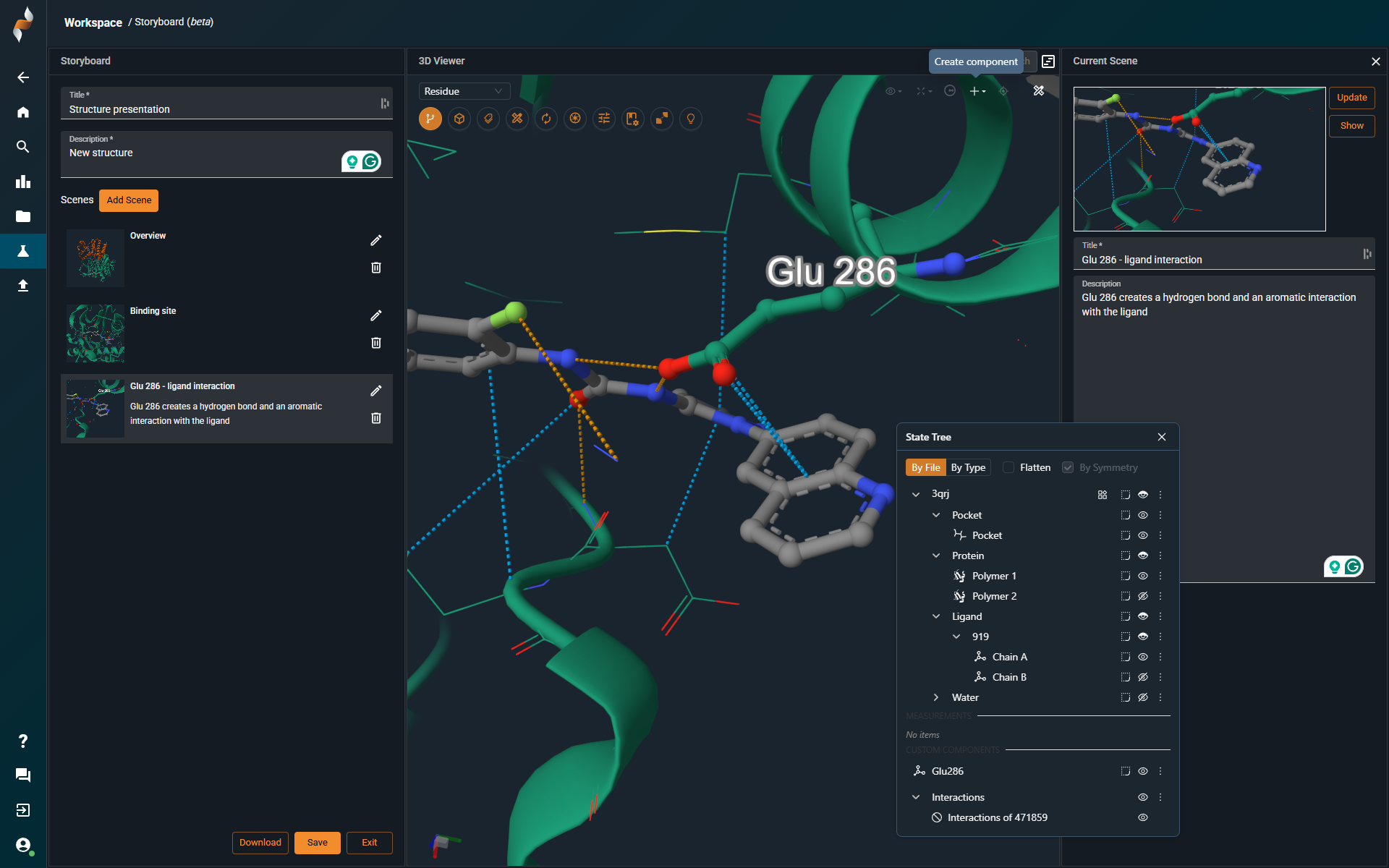
| Control | What it does |
|---|---|
| Story title and description | Required to save. |
| Scene list | One entry per scene. The first scene is created from what is currently in the 3D viewer. |
| Scene title and description | Text shown with the scene. |
| Add Scene | Adds a scene from the current 3D view. |
| Update | Saves the current 3D view (representations, zoom, clipping) into the selected scene. |
| Save | Saves the storyboard. After saving, the scenes can't be edited. |
¶ View mode
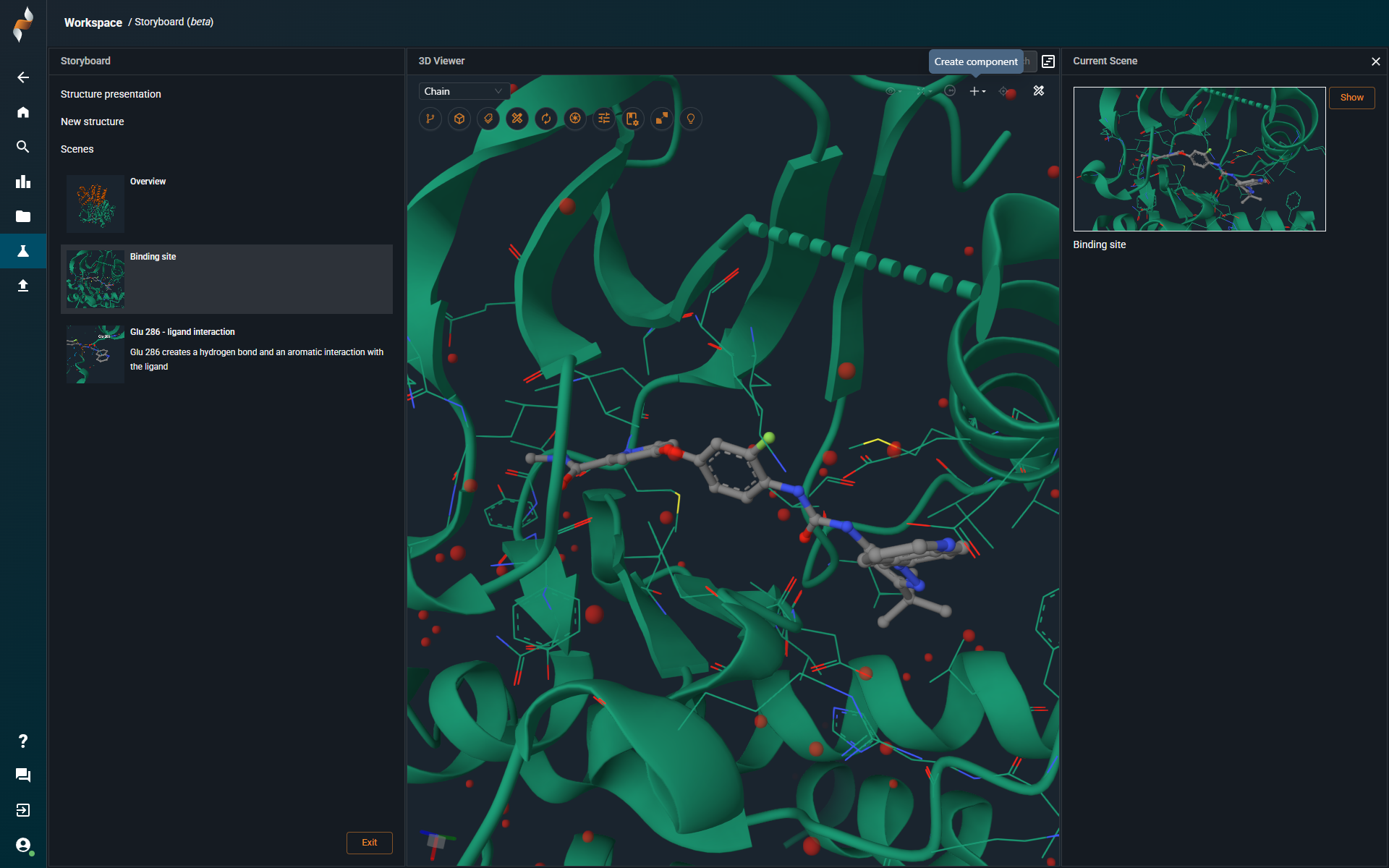
View mode shows the scenes in order with their text. The 3D viewer stays interactive, so viewers can rotate and zoom each scene.
¶ Related
- How-to: Create and share a storyboard
- Feature: Projects
- Feature: Workspace and 3D Viewer