This page provides guidance on how to customize the view in the new 3D viewer.
¶ Change the color of a chain or ligand
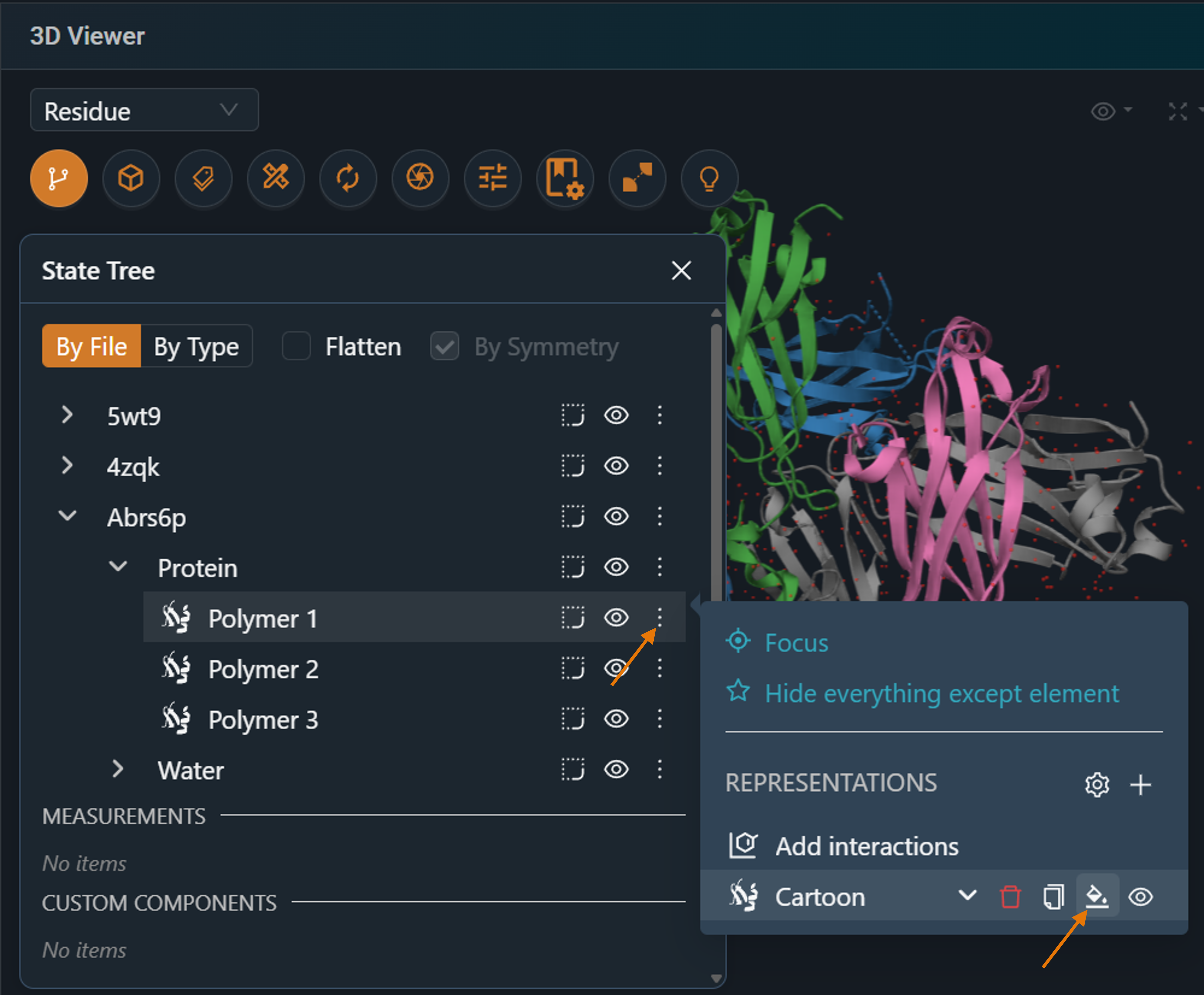
¶ 1. Open the State Tree and identify the chain/ligand of interest
Expand the entries in the State Tree to locate the desired chain or ligand. Hovering over an object will highlight it directly in the 3D viewer, allowing you to confirm your selection visually.
¶ 2. Click on the action menu and the color bucket icon of the representation
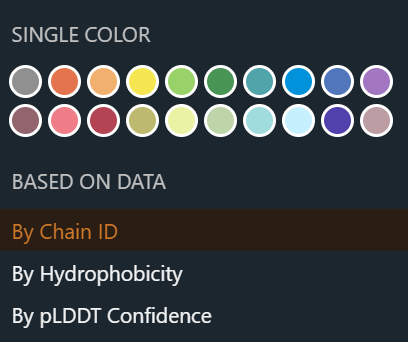
¶ 3. Select a color or a property
All representations can be colored using a single uniform color or a data property:
- Chain ID
- Hydrophobicity
- pLDDT confidence score
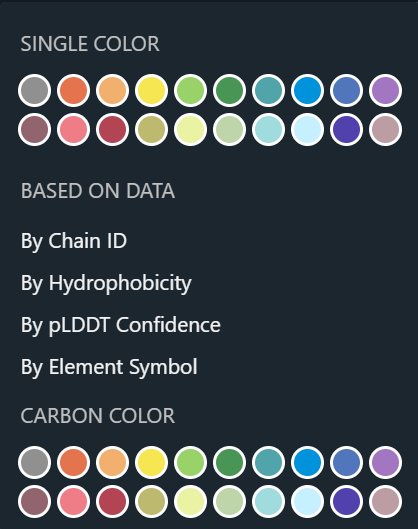
In ball‑and‑stick representations, atoms can be colored by element symbol, with the option to specify the color used for carbon atoms:
¶ Focus the view on a residue
Right‑click on a ligand or residue to zoom in and center the 3D view on that element.
¶ Zoom in on a binding site
If the ligand of interest is visible, simply right‑click on it to zoom in and center the viewer on that ligand. If you are unsure of its location, use the Presets menu to focus on a specific binding site:
¶ 1. Click on the 'Presets' icon and select 'Ligand Design'
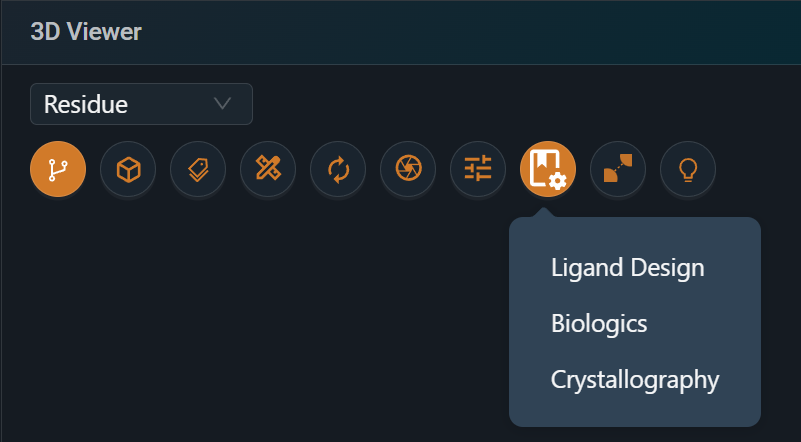
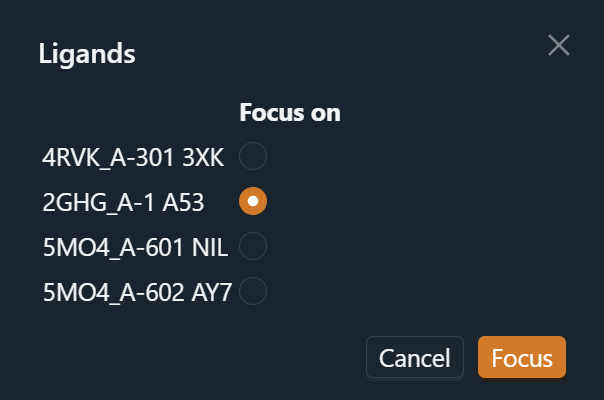
¶ 2. Select a ligand to focus on
¶ Hide a chain
¶ 1. Open the State Tree and identify the chain of interest
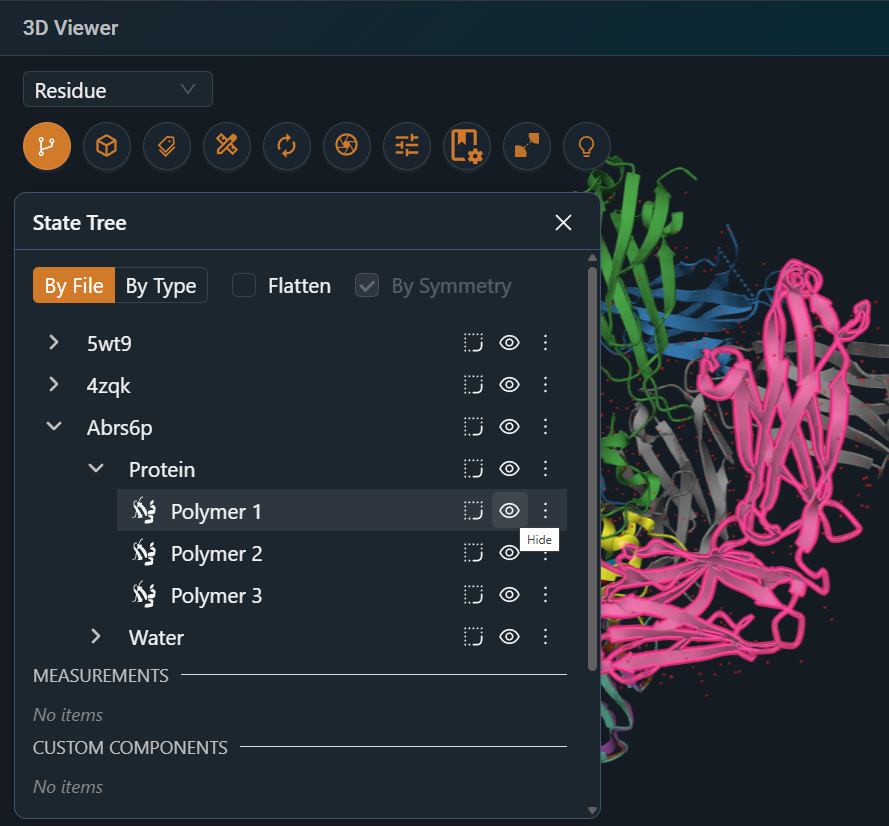
Expand the structure and protein entries in the State Tree to locate the desired chain. Hovering over a chain will highlight it directly in the 3D viewer, allowing you to confirm your selection visually.
¶ 2. Click on the eye icon to hide the object
¶ Add a label
¶ 1. Select the resiude/chain that should be labeled
Left-click on the residue/chain of interest. You can use the menu on the top right of the 3D viewer to change the selection level from resiude to atom or chain.
Note: Residue selection within a custom component has a known limitation. Please refer to the workaround described here.
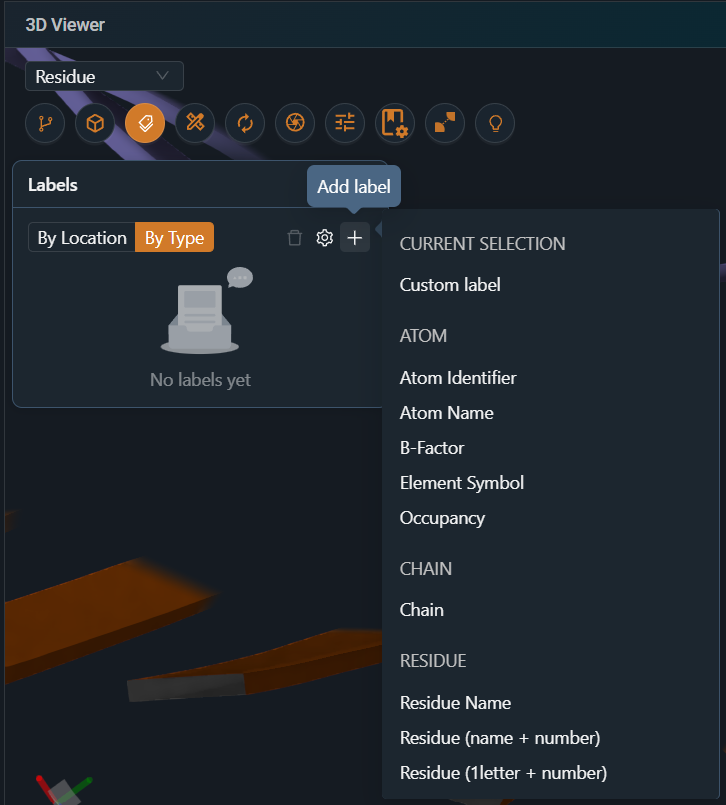
¶ 2. Open the 'Labels' panel and click on the + icon
Select preformated label, e.g. "Resiude (name + number)", or create your own Custom label:
¶ 3. Configure label (size, color and position)
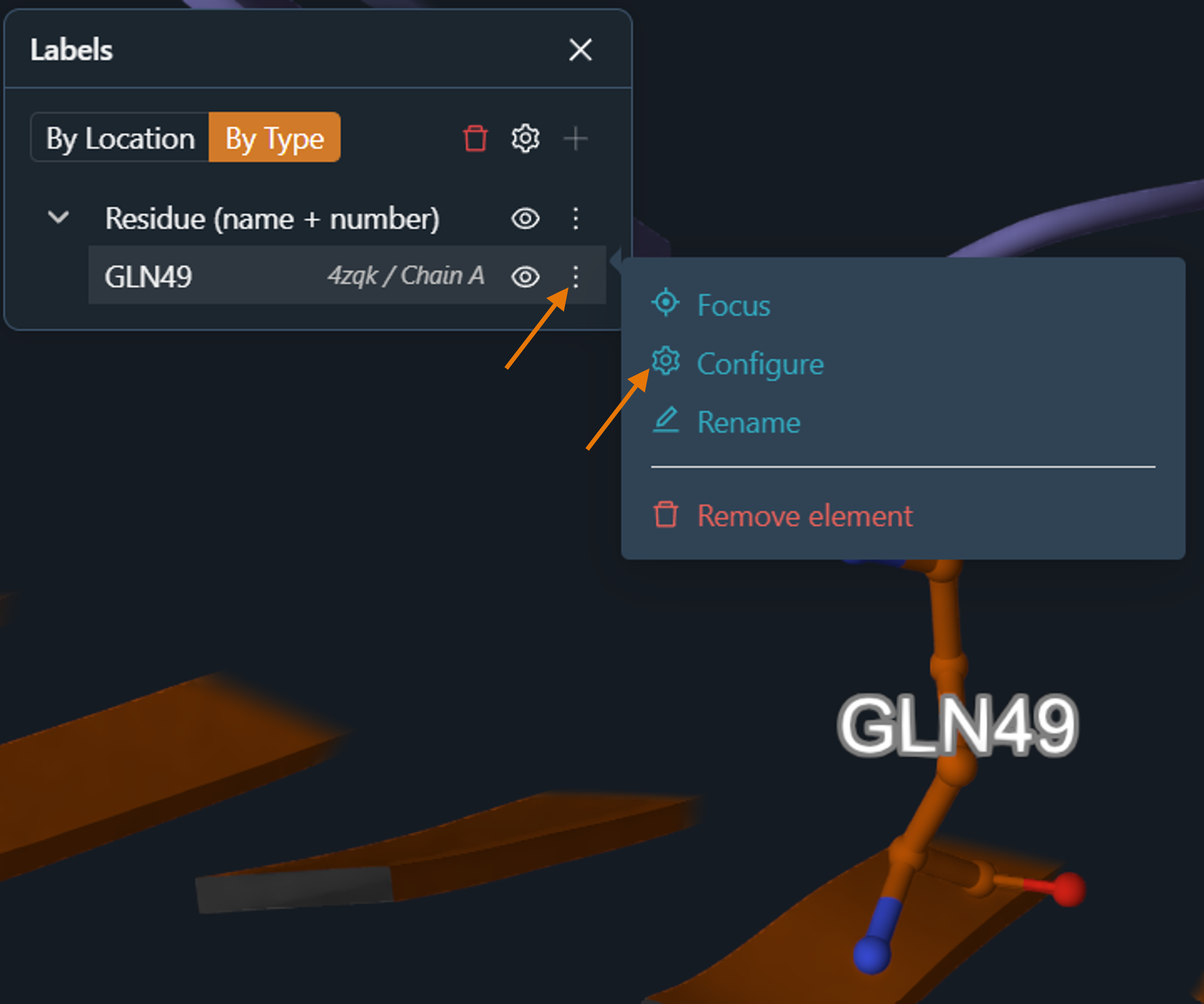
Click on the action panel icon for your label in the 'Labels' panel and select 'Configure'.
¶ Create a custom component
A custom component can be any part of the structure, e.g. a key residue, an epitope, a binding site, that you want to display with a specific representation.
¶ 1. Select the atoms/resiudes/chains that should be part of the component
Left-click on the residue(s) of interest. You can use the menu on the top right of the 3D viewer to change the selection level from resiude to atom or chain.
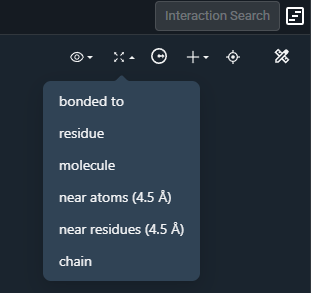
¶ 2. Optional: Extend the selection to neighbouring residues
Click the Expand selection icon, then select the option that best fits your need (e.g. “Near residues (4.5 Å)”).
¶ 3. Optional: Deselect elements to exclude from the component
Left‑click on any chain, ligand, or residue(s) you want to exclude from the selection.
¶ 4. Create the component
Click on "Component from Selection" under the ➕ icon in the top-right corner:
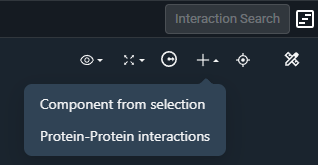
The new component will appear in the State Tree, where you can adjust its visibility, representation, and coloring just like any predefined element.
¶ Known limitation with custom components
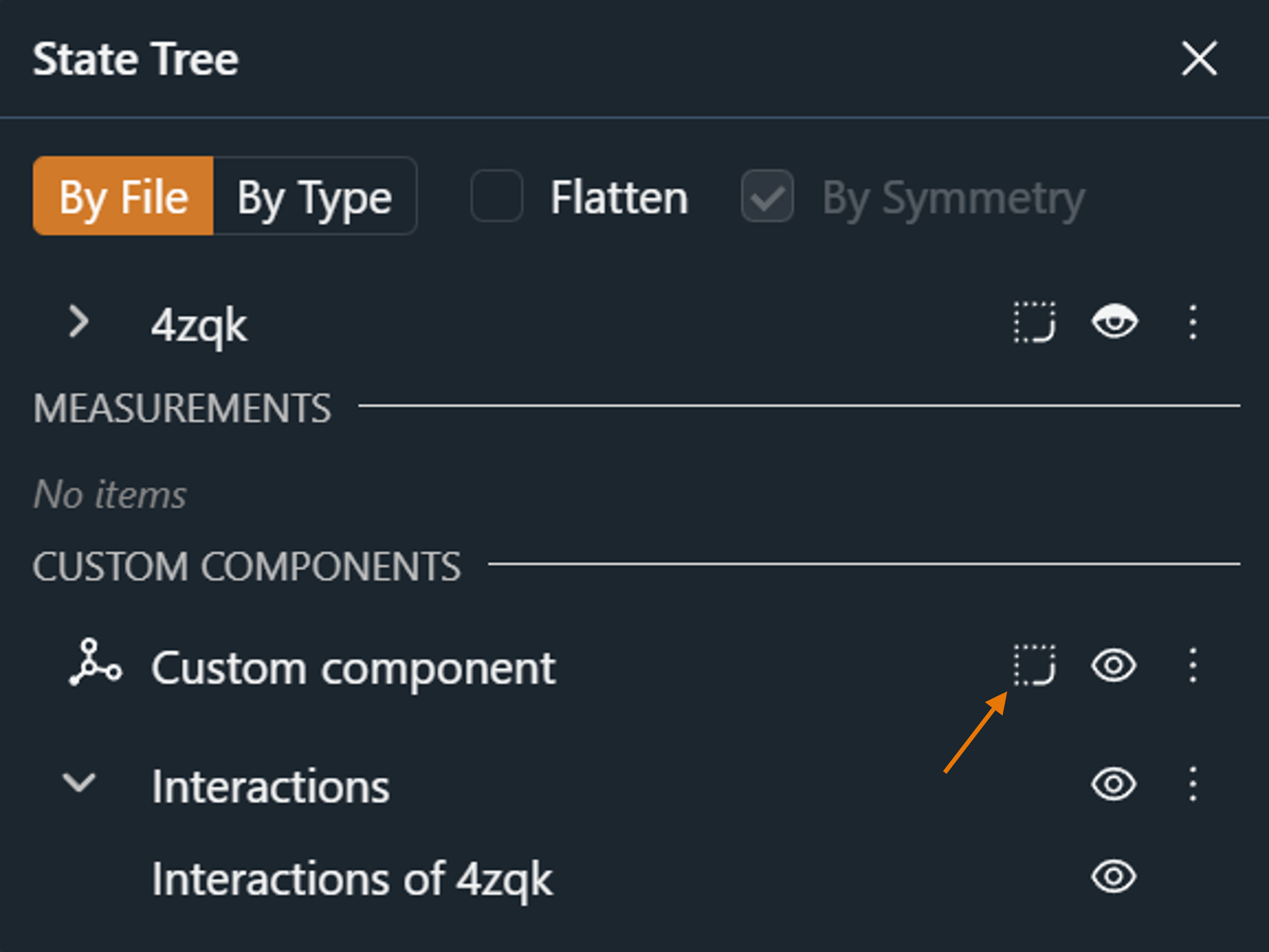
Individual residues of custom components cannot be selected by clicking with the mouse.
Workaround: Click on the backbone of the chain cartoon representation instead, or create a custom component containing only this chain and select it via the state tree:
¶ Hide/show all waters
¶ 1. Click on the 'Components' icon and hide 'Water'
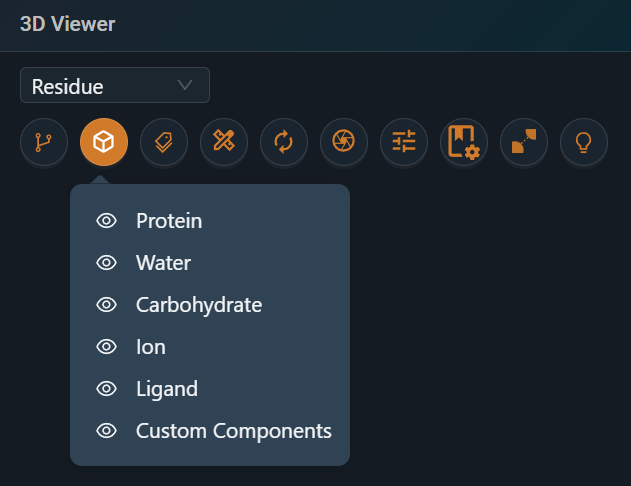
This action lets you show or hide all waters across all structures with a single click.
¶ Related ressources
Tutorial: 3D viewer - analyze your structure
Storyboard: A New Way to Share and Collaborate