¶ PyMOL plugin
¶ Introduction
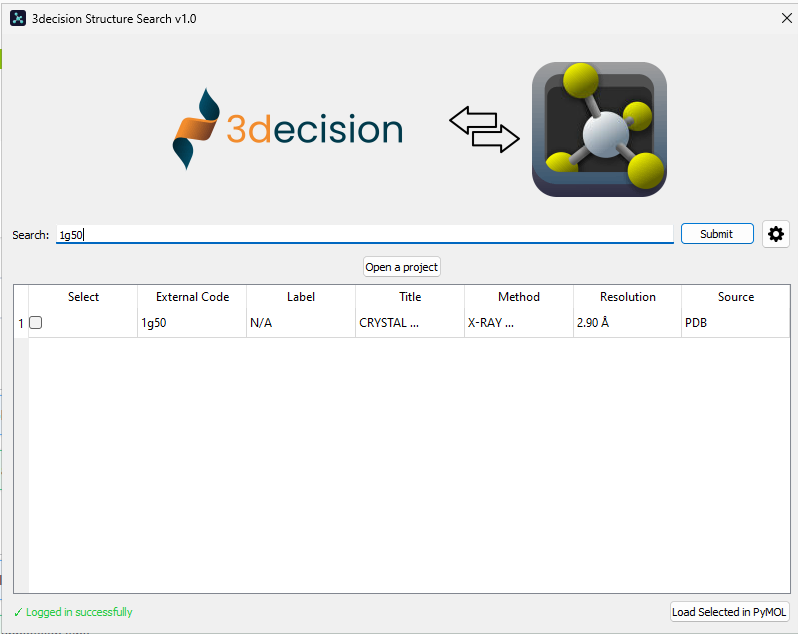
The plugin for connecting PyMOL to 3decision services, allows users to search for structures, browse projects, and visualize molecular data directly within PyMOL.
¶ Installation
Pre-requisite: You need a plugin file for the installation. To obtain access, please contact 3decision Support (3decision-support@discngine.com), submit a ticket via the 3decision UI, or reach out to your Account Manager.
-
In the PyMOL menu, click on Plugin > Plugin Manager.

-
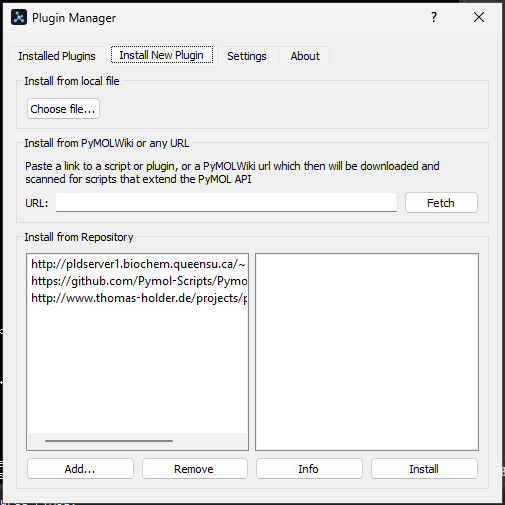
Go to the "Install New Plugin" tab and click on "Choose file..." in the "Install from local file" section. Select
3decision_plugin.zipand click "Open".
-
Click on
Ok(orYes) until you return to the Plugin Manager. You should get a success message. -
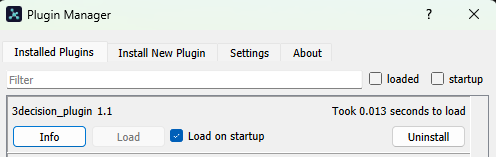
Click on the "Installed Plugins" tab. You should see
3decision_plugin 1.X(X = the version of the plugin you are installing). Be sure that the latest plugin version is selected. Close the Plugin Manager menu.
-
If you are updating the plugin to a newer version, restart PyMOL to finalize the upgrade and start using the plugin.
¶ Use the Plugin
¶ Pre-requisite
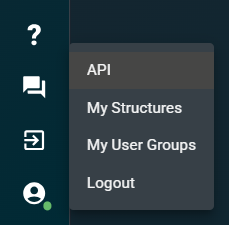
- Connect to the 3decision user interface.
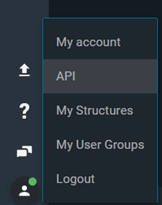
- Navigate to the User menu > API.
 |
 |
|---|
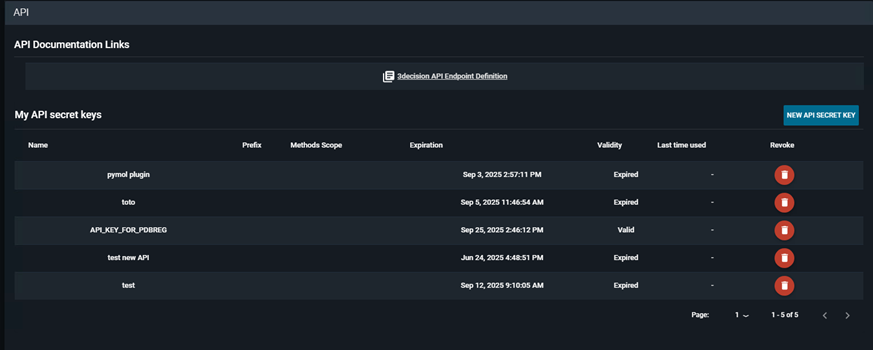
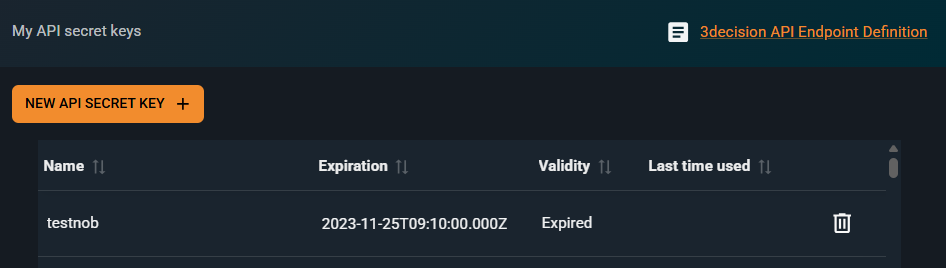
A page will open with information about the API documentation and your API secret keys.
 |
 |
|---|
- Copy the URL behind the “3decision API Endpoint Definition” link.
- Keep that URL without the
/fullon hand. - Click on “New API secret key” and create a new API key. Keep that key on hand.
¶ Set up the plugin
- From the PyMOL menu, open the
3decisionplugin from the Plugin menu.
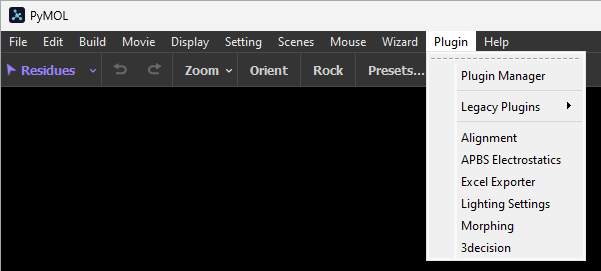
- A pop-up window will open. Click on the gear wheel button on the top right of the menu.
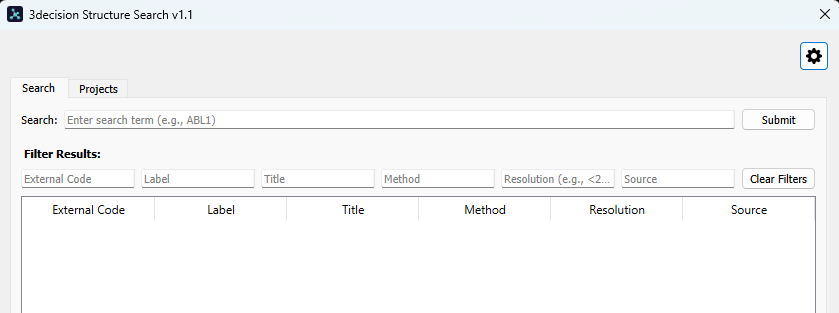
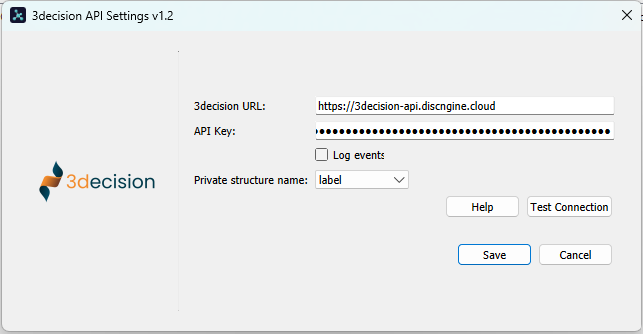
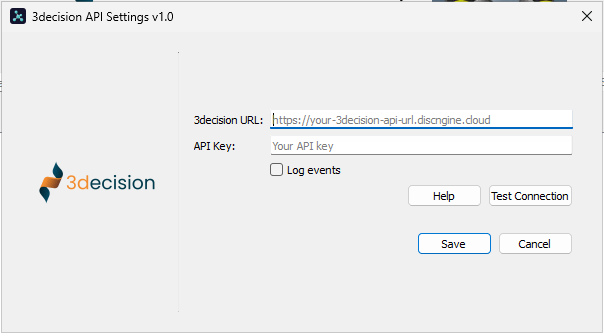
- Fill in the URL and the API key retrieved from the pre-requisite section, then click "Test Connection". If the connection is successful, click "Save".
¶ Version 1.2
Main updates in this version include:
- The plugin in now fully compatible with 3decision version 2.3. (and earlier).
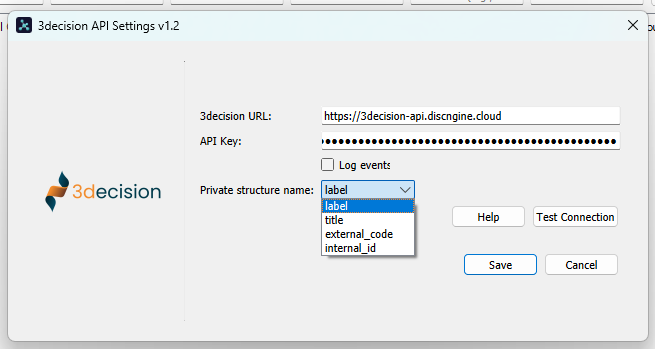
- From the "3decision API Settings" dialog, you can now define which field is used as the PyMOL object name when importing private structures. Supported fields include:
label,title,external_code,internal_id).
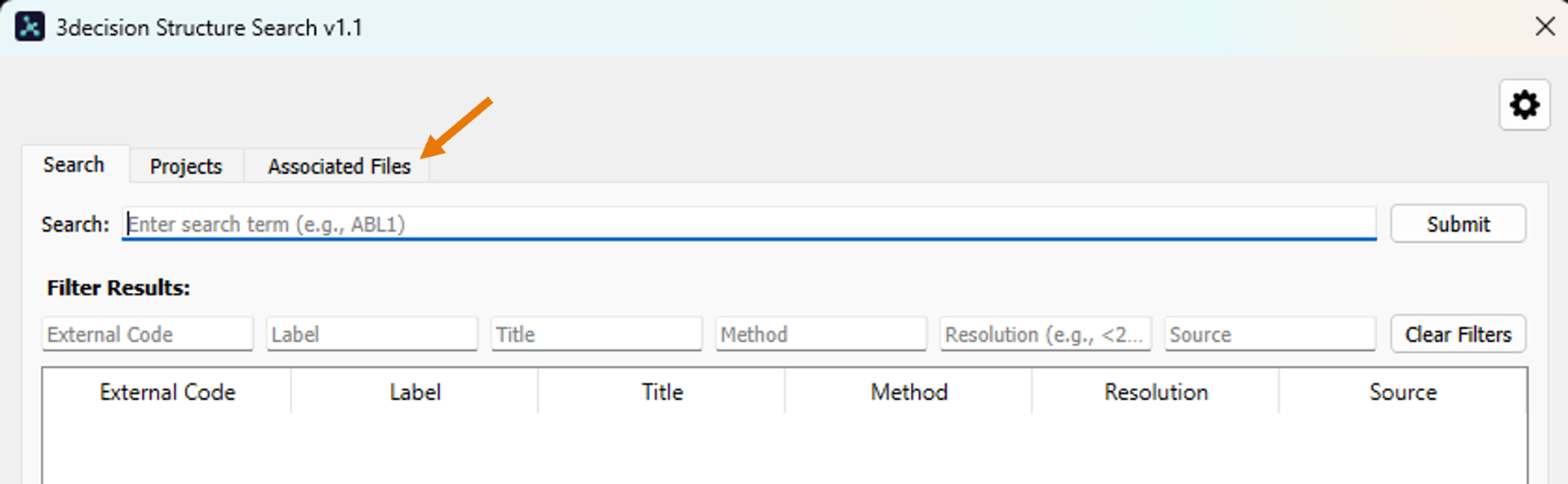
- Associated Files (e.g., electron density maps) attached to structures within a Project can now be download and displayed in PyMOL.
- Minor bugs in API settings dialog are fixed.
¶ Version 1.1
Main updates in this version include:
- All lists can now be sorted and filtered for easier navigation.
- When loading projects that include a reference, all structures are automatically loaded superposed in PyMOL.
- You can now select specific structures to open within a project.
- Minor connection bugs are fixed.
¶ Fetch Structures from 3decision
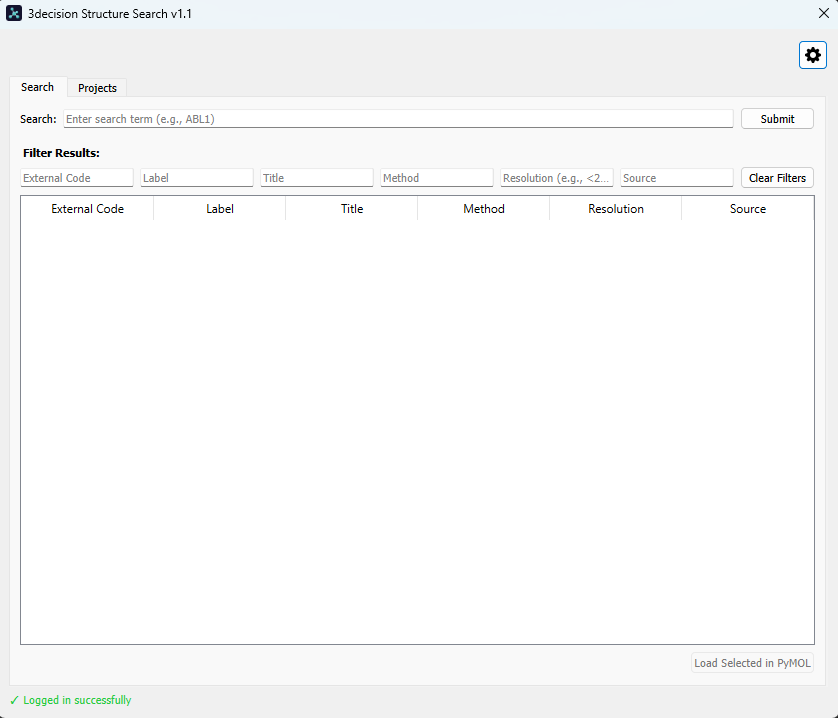
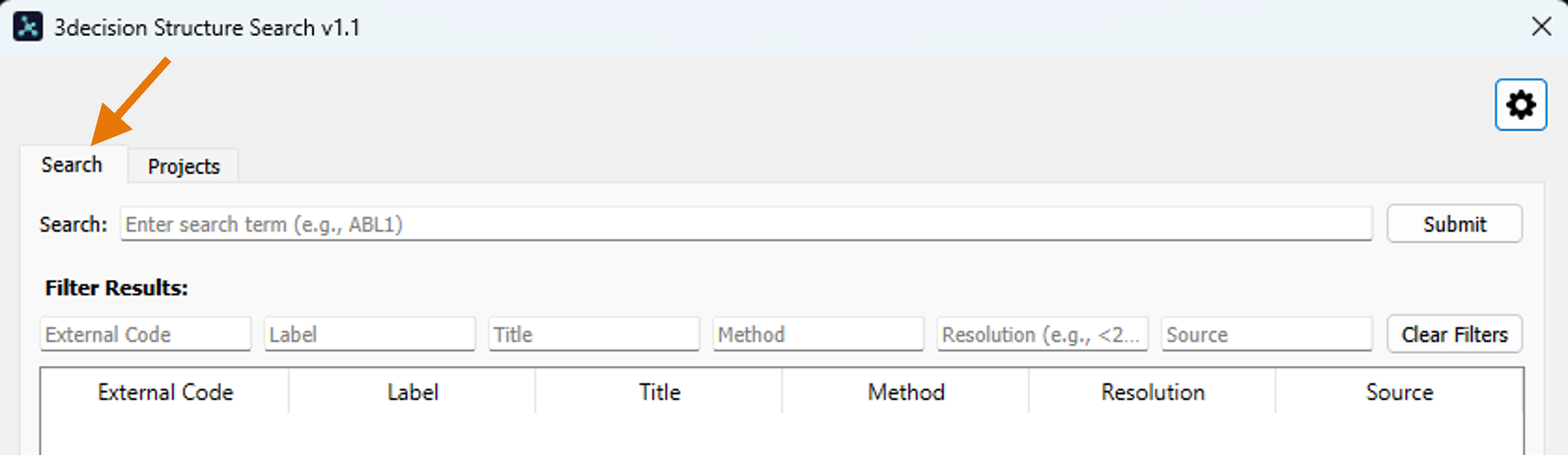
You can load structures from 3decision in PyMOL via two tabs: Search and Projects.
¶ Search
From the Search tab, you can perform a 3decision basic search and filter the results for selecting the structure(s) to open in PyMOL.
¶ Projects
From the Projects tab, you can import structures from a 3decision project. If you have pre-aligned the structures in the project (see Project section of this user guide), they will be automatically loaded superposed in PyMOL.
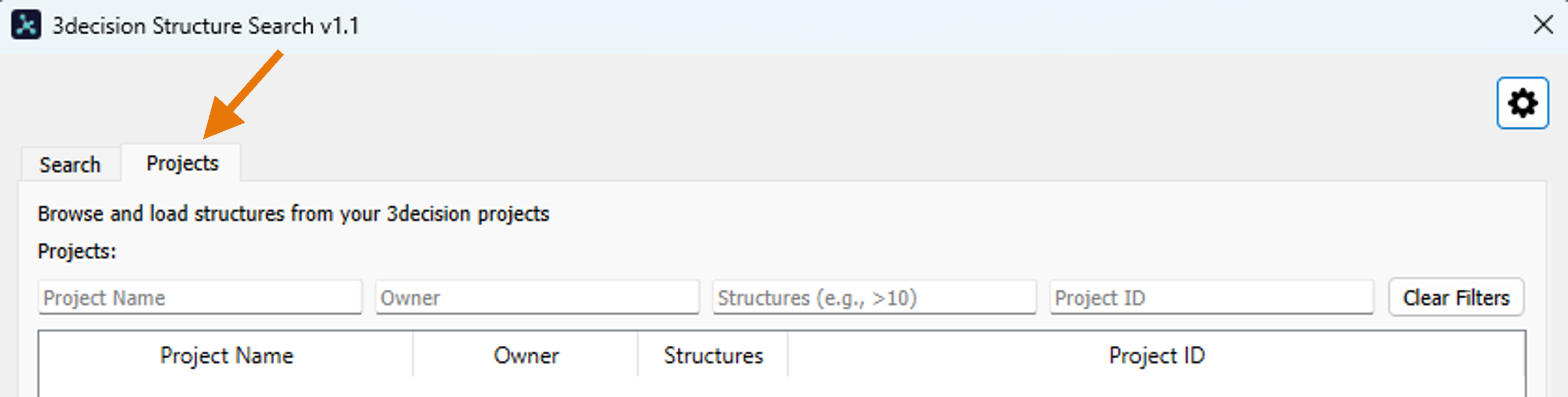
- Click the "Refresh Projects" button to load all available 3decision projects.
-
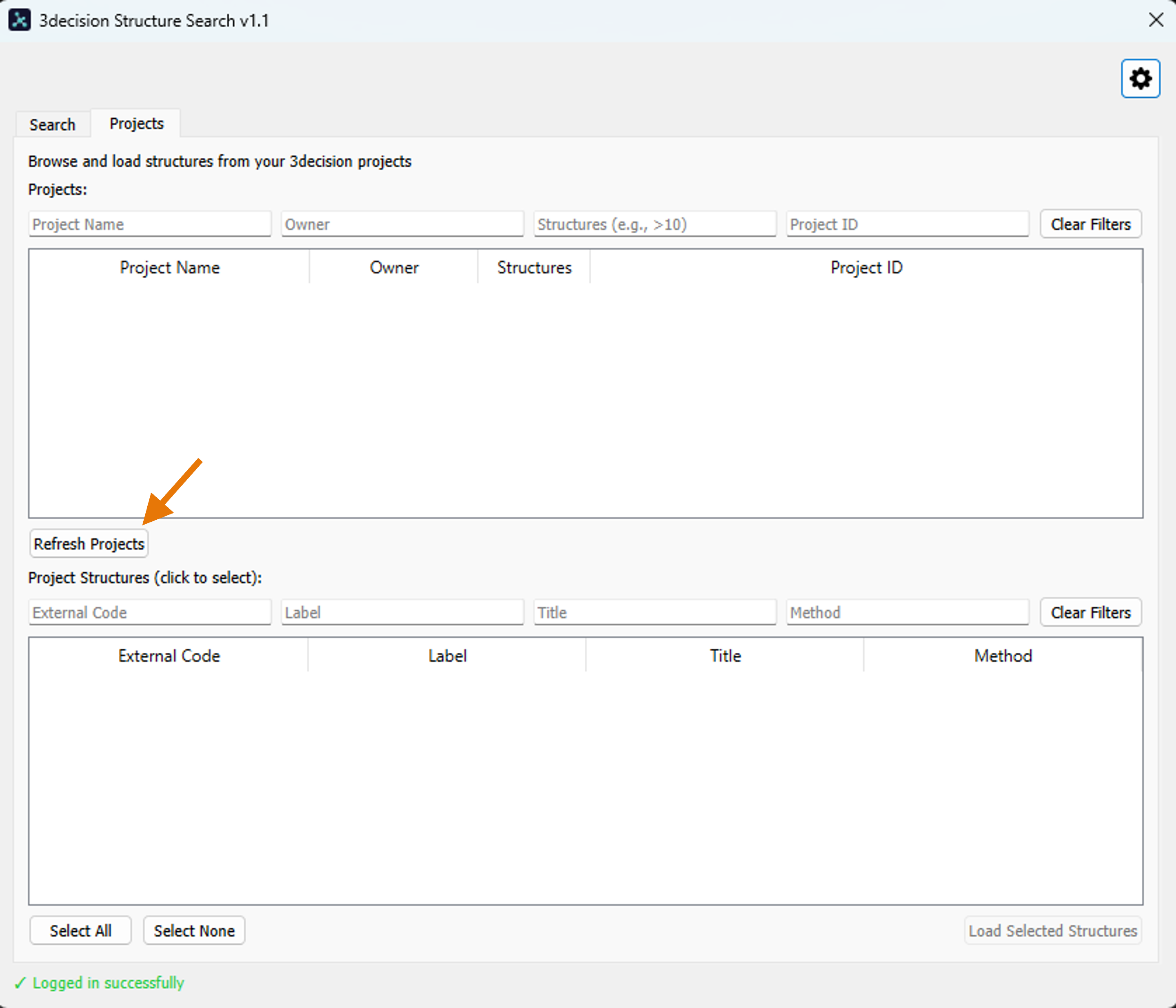
Use filters (Project Name, Owner, number of Structures, Project ID) to narrow the list.
-
Select a project to view its structures in the bottom panel.
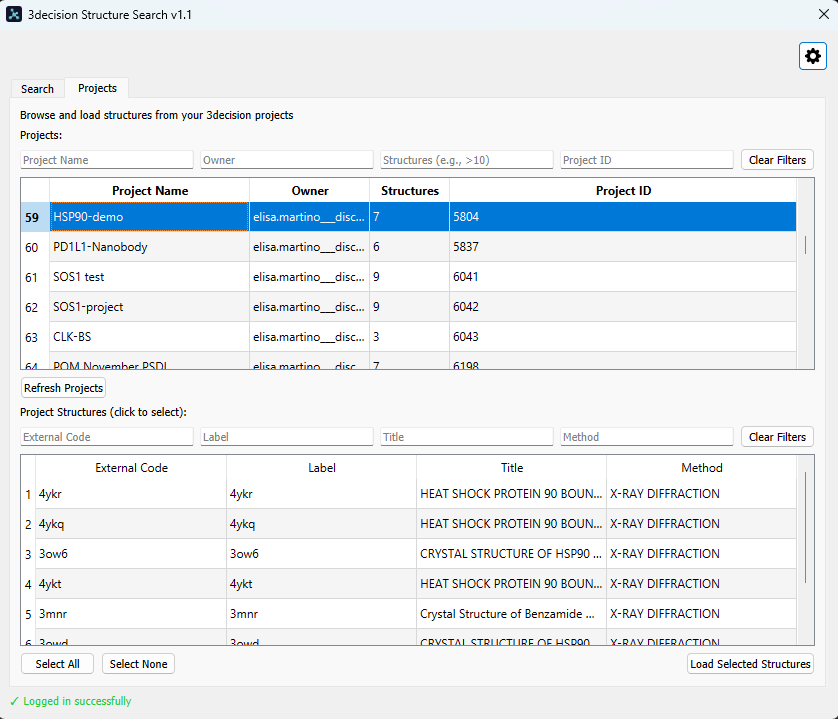
- Filter structures within the project by External Code, Label, Title, or Method.
¶ Version 1.0
¶ Set up the plugin
- From the PyMol menu, open the
3decisionplugin from the Plugin menu.
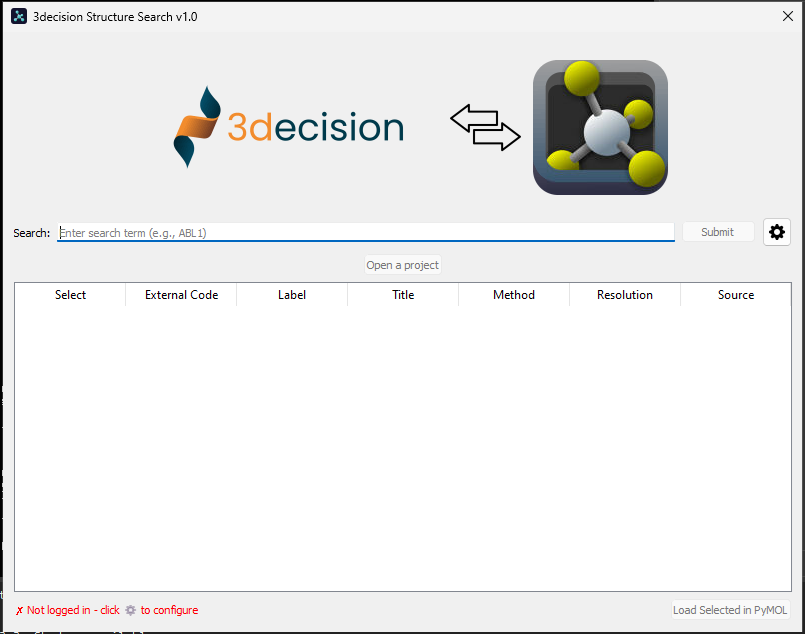
- A pop-up window will open. Click on the gear wheel button next to Submit.
- Fill in the URL and the API key retrieved from the pre-requisite section, then click "Test Connection". If the connection is successful, click Save.
¶ Perform a Search
You can now perform 3decision basic search and Load Selected structures in PyMOL.