¶ Introduction
The 3decision Maestro Plugin connects Schrodinger Maestro with Discngine's 3decision database, allowing users to access and import 3D structures and related data directly within Maestro.
This plugin provides a GUI inside Maestro to search the 3decision database, browse project, and open structures (and associated files) in Maestro with minimal effort.
Key features include:
- Structure Search: Search the 3decision database by keyword, PDB code, target name, or other criteria and filter results
- Project Browser: Browse and load structures from 3decision projects with transformation matrices
- Associated Files: View and open associated files for a given structure (such as CCP4, MTZ, PDB, CIF, etc.)
- Metadata: 3decision metadata such as structure IDs, external codes, and labels are preserved as custom properties in Maestro’s Project Table for reference.
- Maestro Integration: Native integration with Maestro's tool system and menu structure
With this plugin, you can easily integrate 3decision’s structural repository into your Maestro modeling environment, streamlining the process of finding and analyzing protein structures.
¶ Installation
¶ Prerequisites
- Schrödinger Maestro 2025-3 or later - Download from Maestro official website.
- Active 3decision API credentials (API key and server URL) - Guide available here
¶ Installation steps
To install the 3decision Maestro Plugin, follow these steps:
- Download the plugin source code here and unzip the folder.
- Launch Maestro, then go to Scripts > Install Custom Scripts... in the Maestro menu bar
- In the dialog, navigate to the
downloaded 3decision_plugin_maestrofolder, and selectthreedecision_maestro.py - Click Install
- Restart Maestro to finalize the installation
- After restart, the plugin will appear in Scripts > 3decision.
Note: The installer automatically copies both threedecision_maestro.py and the downloaded 3decision_plugin_maestro folder containing the plugin files.
¶ Configuration
Before you can search or load structures, you need to configure the plugin with your 3decision API credentials.
- From the Maestro menu bar, go to Scripts > 3decision
- From the plugin panel, click the Settings button at the top-right of the page
- In the configuration dialog it opens, enter the the URL of the API of 3decision.
Note: this URL is different from the usual 3decision URL you are used to. You can find how to generate the API Key you need to insert into this dialog and the URL from this documentation. Also, the API Key you enter here should be ONLY used by you. Every user needs to set up his own key.
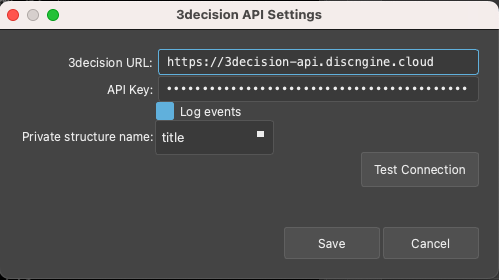
- Once you filled both items, click on Test Connection to verify that the authentication in 3decision was correctly setup. You should get a success message.
- In the Private structure name section, select your preferred naming option for the proprietary structures
- Click Save.
The plugin is now ready to use. The configuration is saved to ~/.3decision_maestro_config.
Don't hesitate to reach out to 3decision support (3decision-support@discngine.com) if you have trouble setting this up, or consult the Troubleshooting section of this page.
¶ How to use the Plugin
¶ Search
Once your 3decision connection is configured, you can use the Search tab in the plugin to find structures in the 3decision database.
¶ Performing a Search
To launch a search:
- In the Search tab, enter a search term in the search field, and click Submit.
All the search options supported in 3decision are supported here as well, so you can use excerpts from titles, pdb codes, protein or gene names and identifiers that you used to label your structures or compounds and smiles strings. - The plugin will query the 3decision database and display matching structures in a results table.
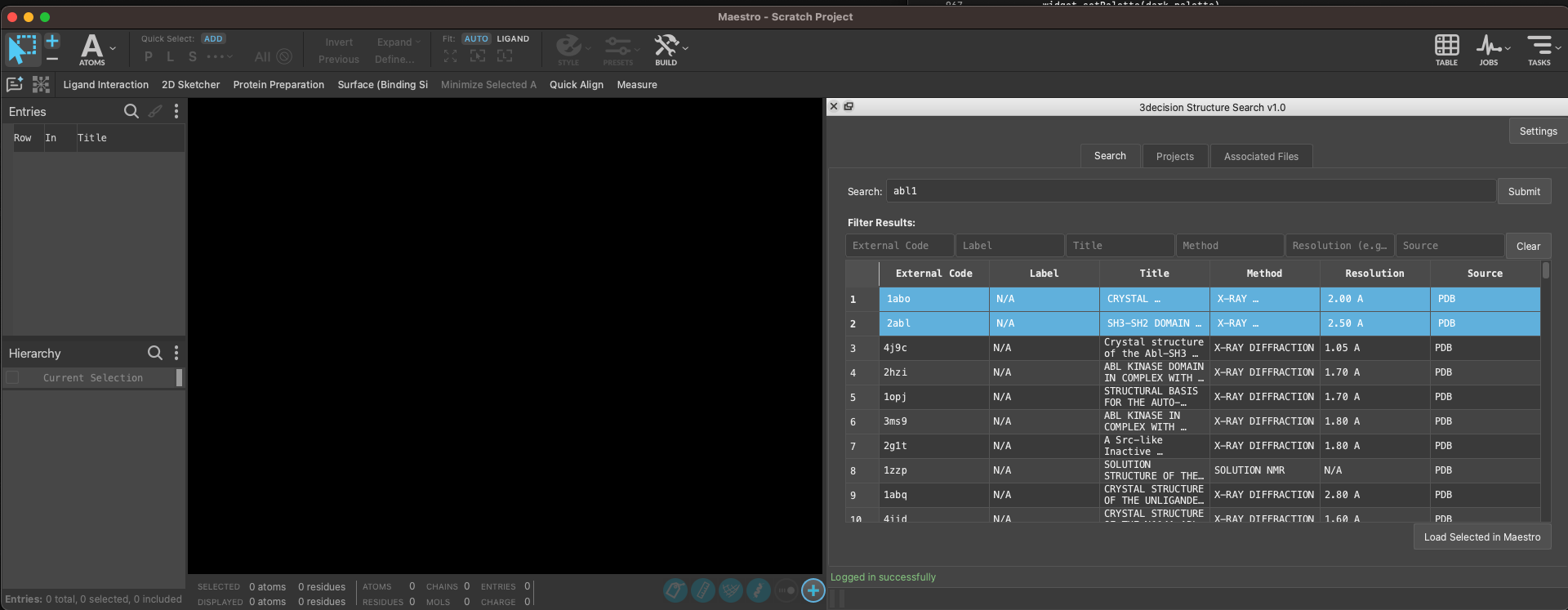
Here for instance I searched for abl1. Hundreds of structures show up in the listing.
¶ Filtering Results
You can narrow down your search with the filters above the results table.
- For text columns (like title or target), you can type part of a word to filter the list.
- For numerical columns (such as resolution or date fields), you can use comparison operators. For example, typing <1.8 in the resolution filter box will show only structures with resolution better than 1.8 Å. You can also use ranges or other comparisons (e.g., >1.5 for resolution worse than 1.5 Å, or 1.5-3.0 to get resolutions between 1.5 and 3.0, and <=2.0 for up to 2.0 Å).
Note that each column can be sorted as well, simply click on the column header for ascending sort and click again for descending sorting.
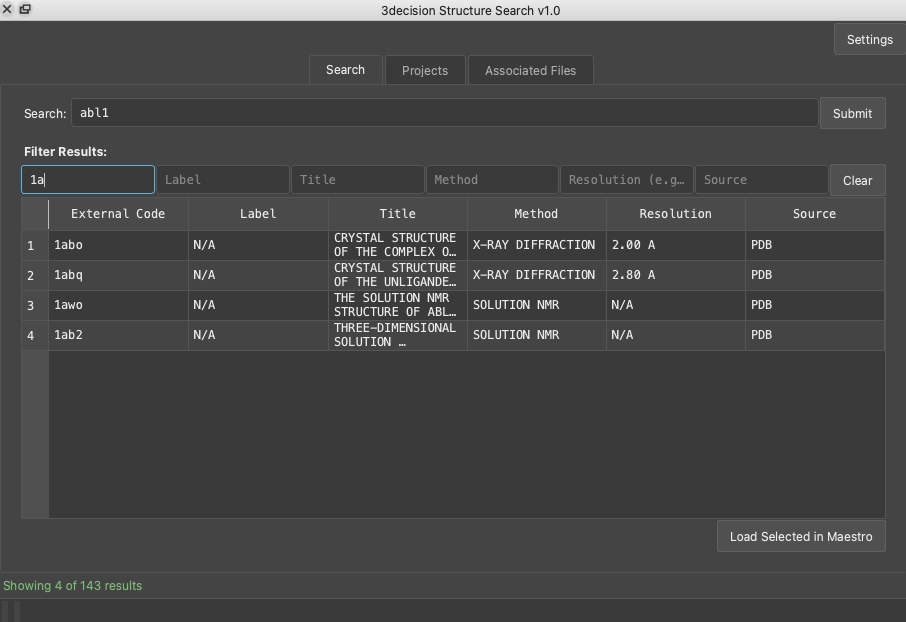
In this case, I used a text filter to quickly retrieve a PDB entry.
¶ Loading Structures
Once you have found the structure(s) you are interested in:
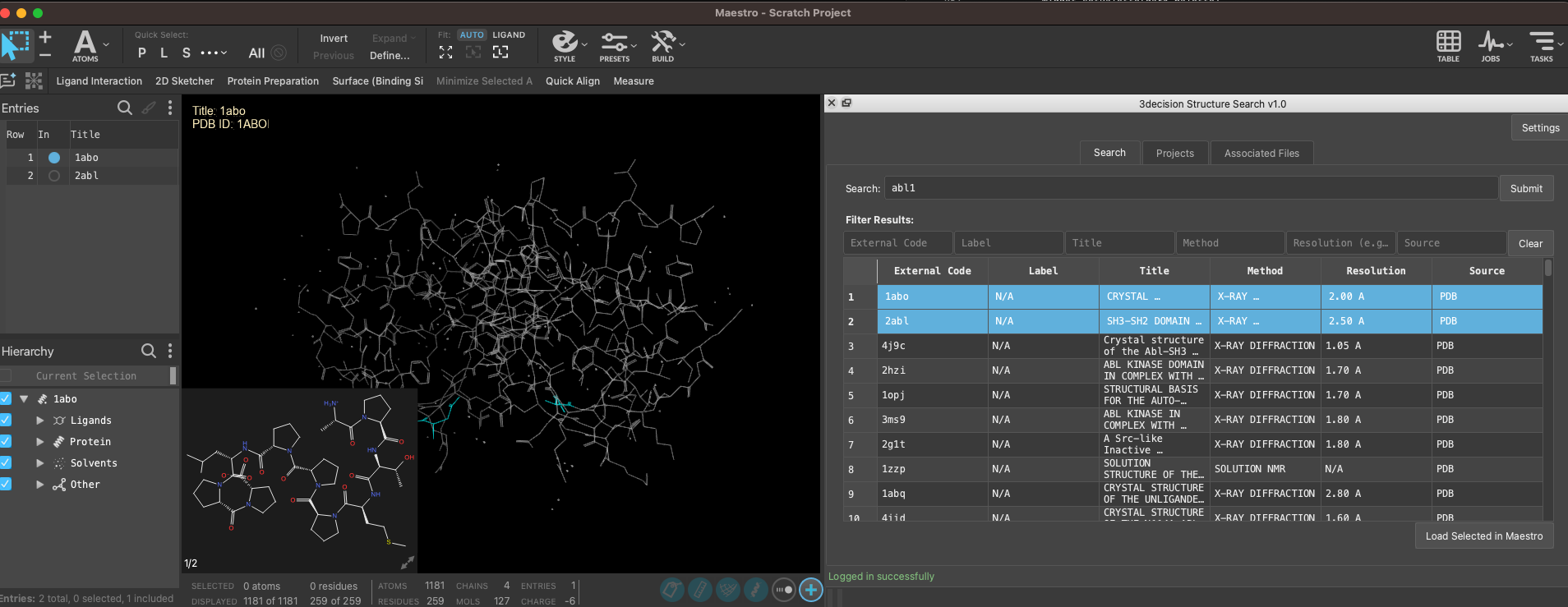
- Select them in the table
- Click on Load Selected Structures
This loads the structure into Maestro.
¶ Projects
The Projects tab allows you to browse your projects on the 3decision platform and load structures from those projects. This is particularly useful for retrieving sets of pre-organized structures (for example, all structures in a project corresponding to a target or a series of experiments) and automatically aligning them if a reference has been defined in 3decision.
From the projects tab, you can access the list of your projects:
- Click Refresh Projects at the bottom-left to load your projects
Here you now have the list of all the projects you have access to, whith details on how many structures are in the project and who owns the project.
As in the search results list, you can filter and sort the project list.
To see the structures within a project.
- Click on the project, and you'll see all structures available in the project in the dialog below.
Again, you can sort and filter the structures within the project, and select the one(s) of interest.
- Select the structures of interest from the table
- Click on Load Selected Structures
Notice that, if the 3decision project has a common reference structure defined, the plugin will apply the corresponding transformation matrix to each structure as it loads in the Maestro view. You can find more information of how to set up for your own 3decision projects, here is the dedicated page of the user documentation.
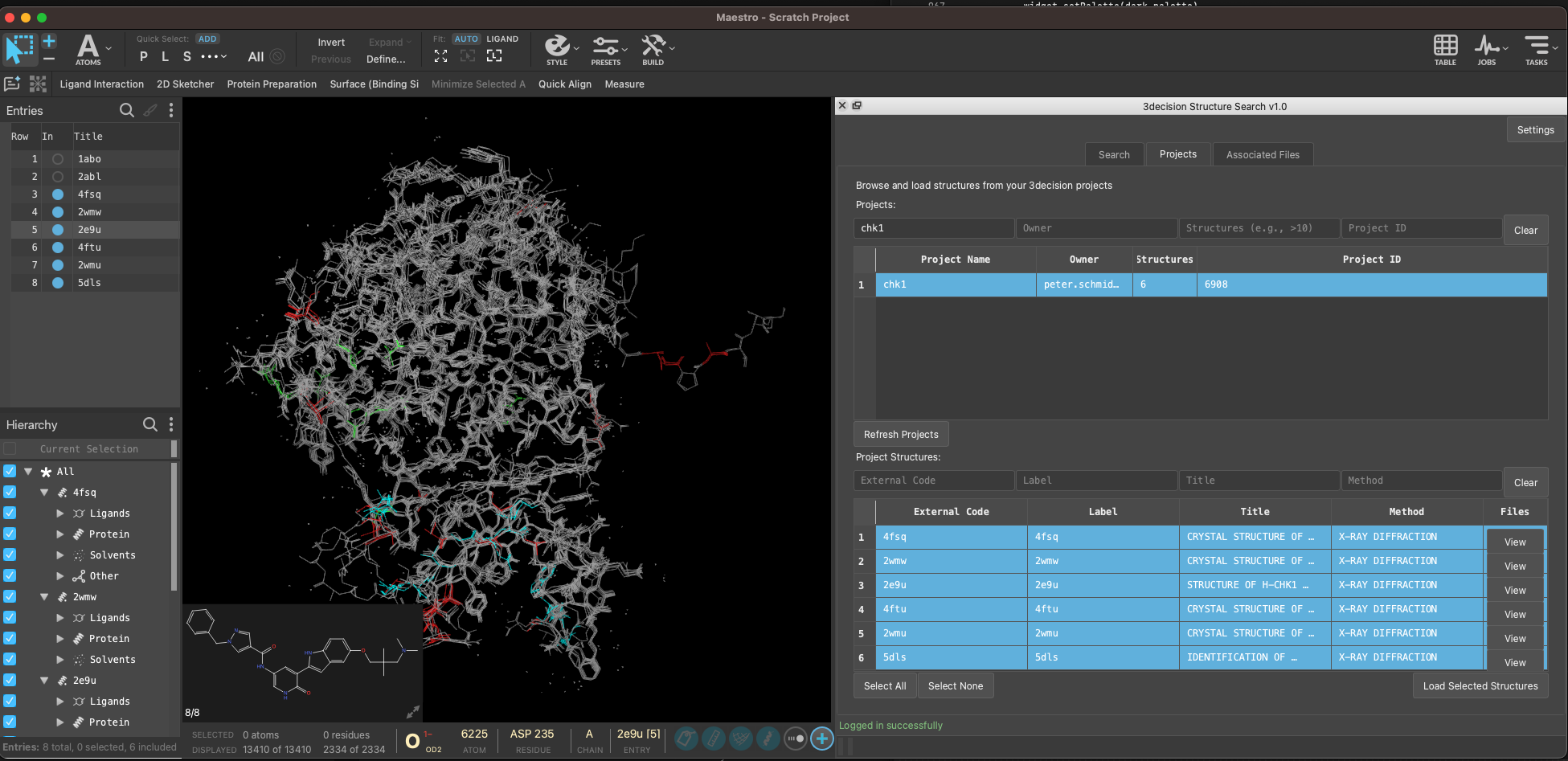
For instance, here I loaded all six structures from my project and you can notice that they are all nicely superposed on the ATP binding site. This is because this 3decision project has a common reference structure defined and all structures in the project are automatically aligned when loaded.
¶ Associated Files
When opening structures from projects, you have an additional button in the table named View Files.
When clicking this button, the Associated Files tab will open, and you'll see a listing of all files that are attached to the structure in 3decision. These may include electron density maps, structure files, and other documents that were uploaded to 3decision for that structure.
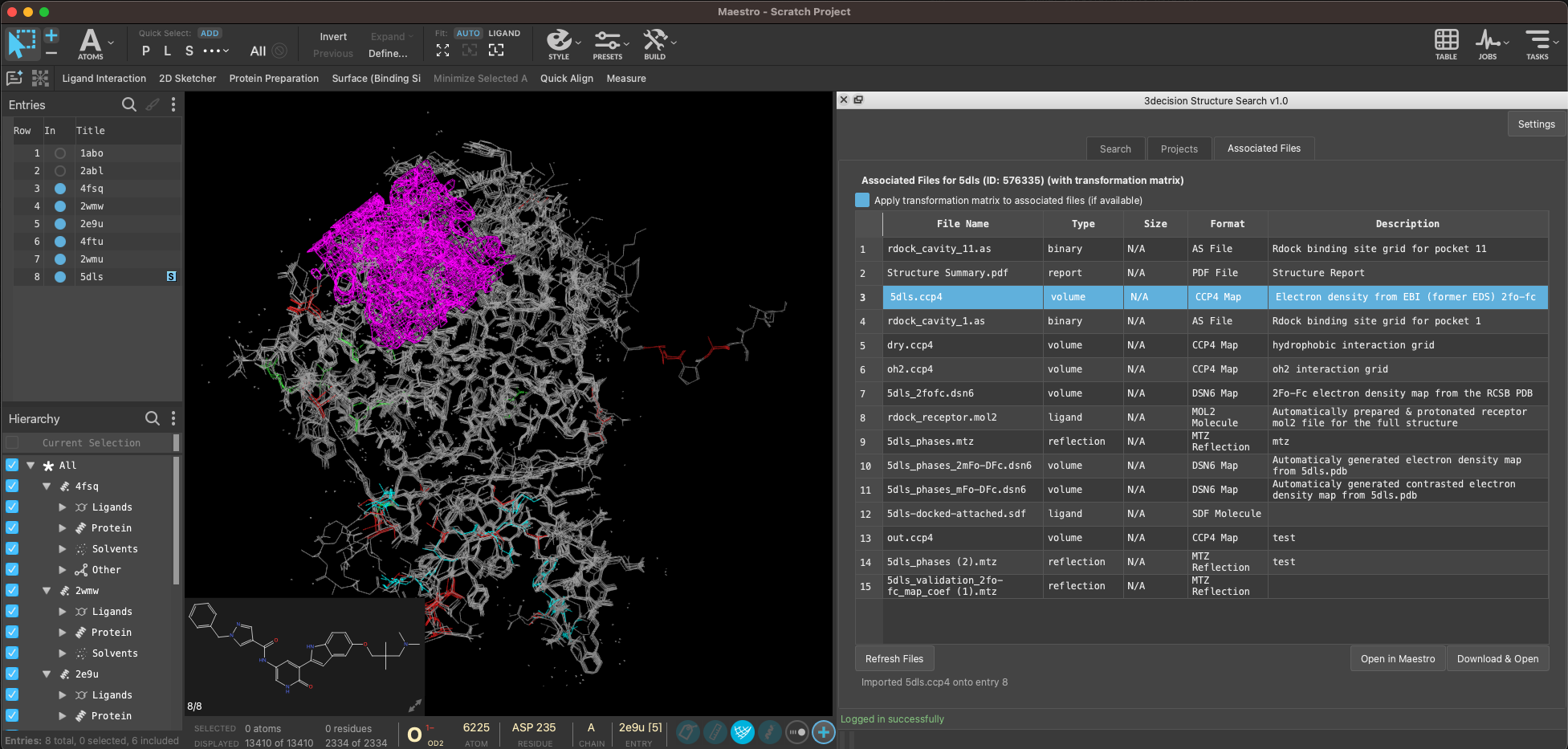
Here are all associated files fro 5dls for instance.
You can either:
- Click Open in Maestro at the bottom-right, to directly import structure/map files directly in the view.
Note that If you defined a common reference for your project, this associated file will also be transformed to the common reference frame, so for instance, if you open a CCP4 electron density map, it will be displayed in Maestro’s viewer aligned to the structure - Click Download and Open to visualize the associated file(s) with the system default application.
¶ Troubleshooting
Here are some common issues you might encounter working with the plugin and how to solve them:
-
Plugin doesn't appear in Scripts menu: If you don’t see the 3decision plugin under the Scripts menu after installation, try restarting Maestro. The application needs to be restarted after installing a new script for it to take effect. If that doesn’t help, ensure that the files were installed to the correct location (re-run the installation steps if necessary).
-
Connection failed upon testing API settings: If the connection test or any operation reports a failure connecting to 3decision:
- Verify your API URL includes https:// and point to the API endpoint of your instance
- Check that your API key is valid. If you suspect it may be incorrect, regenerate a new API key from the 3decision web interface and update the plugin settings.
- Check network/proxy settings to ensure that no firewall or proxy is blocking Maestro from reaching the 3decision server.
If issues persist after checking the above, please contact the 3decision support team at 3decision-support@discngine.com