¶ MOE plugin
¶ Introduction
The 3decision MOE Plugin connects CCG's MOE with Discngine's 3decision database, allowing users to access and import 3D structures within MOE.
¶ Installation
¶ Version compatibility
- 3decision v 2.0 or later
- MOE v 2024 or later
¶ Prerequisites
- You need a plugin file for the installation. To obtain access, please contact 3decision Support (3decision-support@discngine.com), submit a ticket via the 3decision UI, or reach out to your Account Manager.
- Active 3decision API credentials (API key and server URL) - Guide available here
¶ Configuration
- Download and unzip
3decision_MOE_May2025.zip - Copy the files in the three subfolders to the corresponding folders (lib, menu, svl) in
$HOME/moefiles. - Restart MOE.
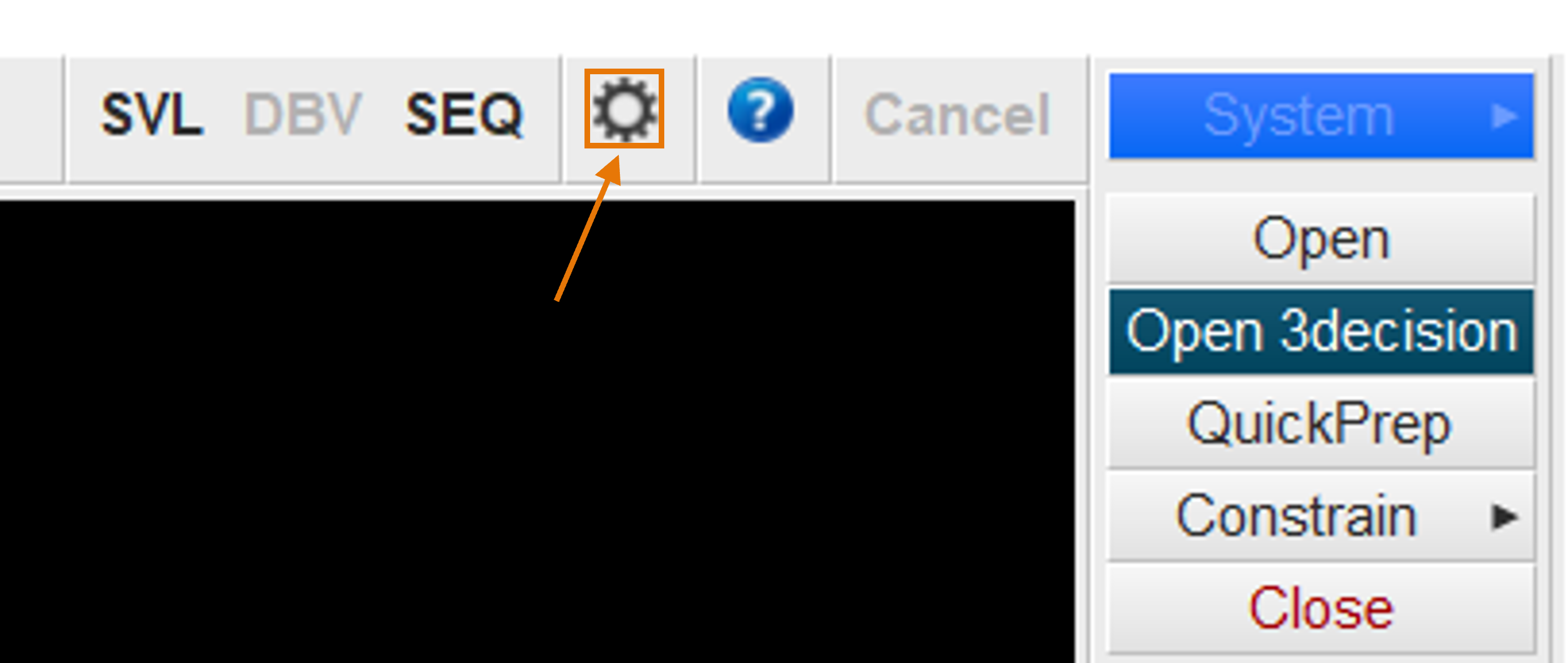
- Click on the gear-wheel at the top-right and then 3decision…:
- Enter the Server API URL and 3decision API Key.
- Click on Test to authenticate.
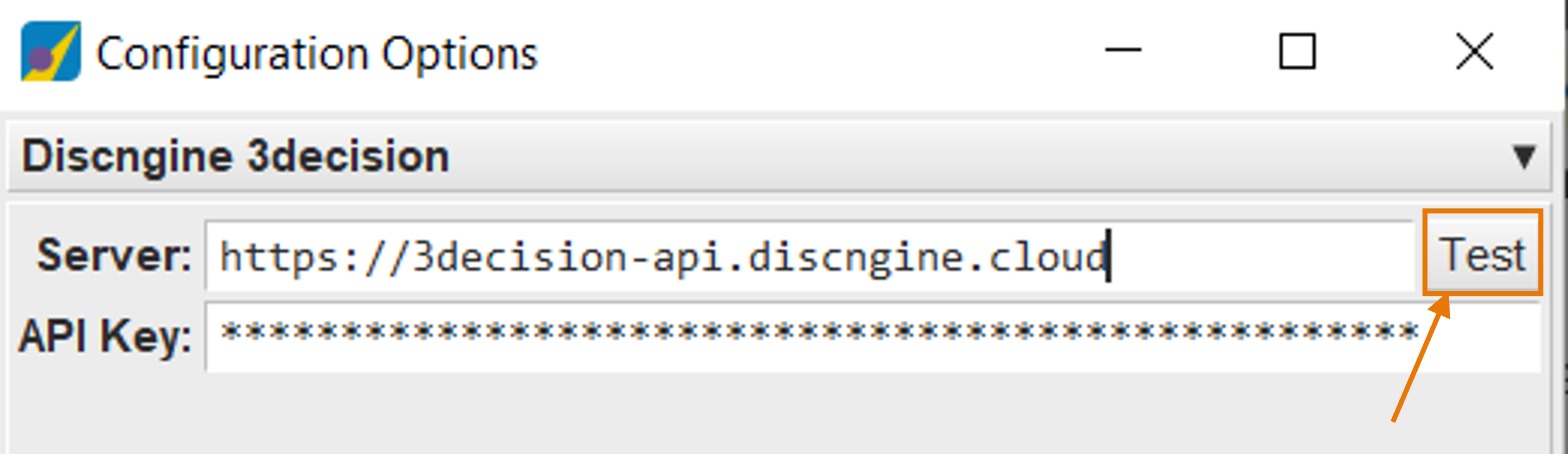
- If the test triggers a
Testing Setup:Successmessage, click on OK.
¶ How to use the plugin
¶ Open the 3decision panel
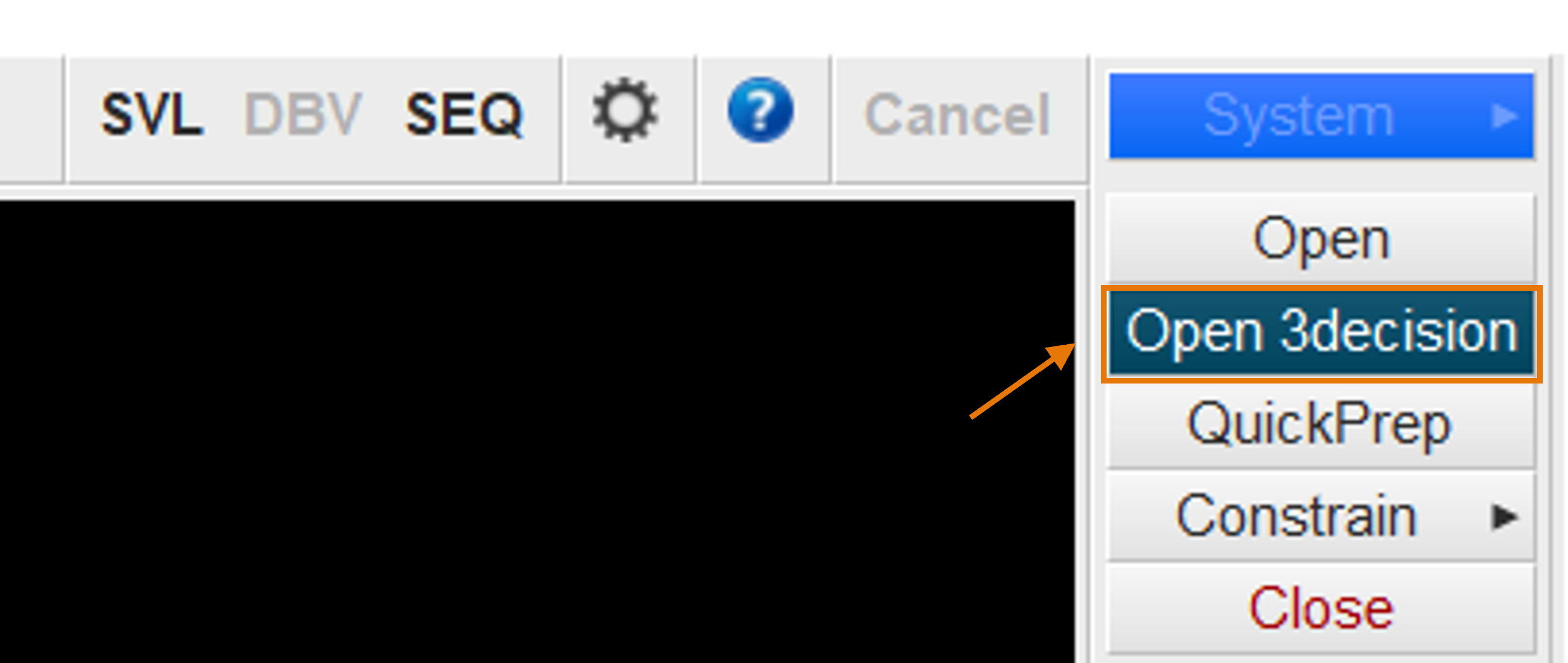
¶ Fetch individual structures
- Select the Search Mode Individual Structure
- Enter a structure code. The structure code can be either a RCSB PDB code (e.g. 1uyd) or a 3decision external code (e.g. w9v8gf).
- Click on Open in MOE.
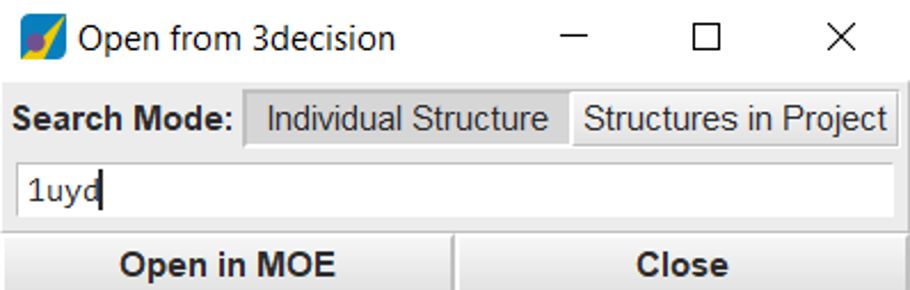
The structure will be loaded into MOE.
¶ Fetch all structures from a project
- Select the Search Mode Structures in Project
- Click on the dropdown list (arrow on the right) to see all 3decision projects you have access to.
- Click on the one you want to load into MOE.
- Click on Open in MOE
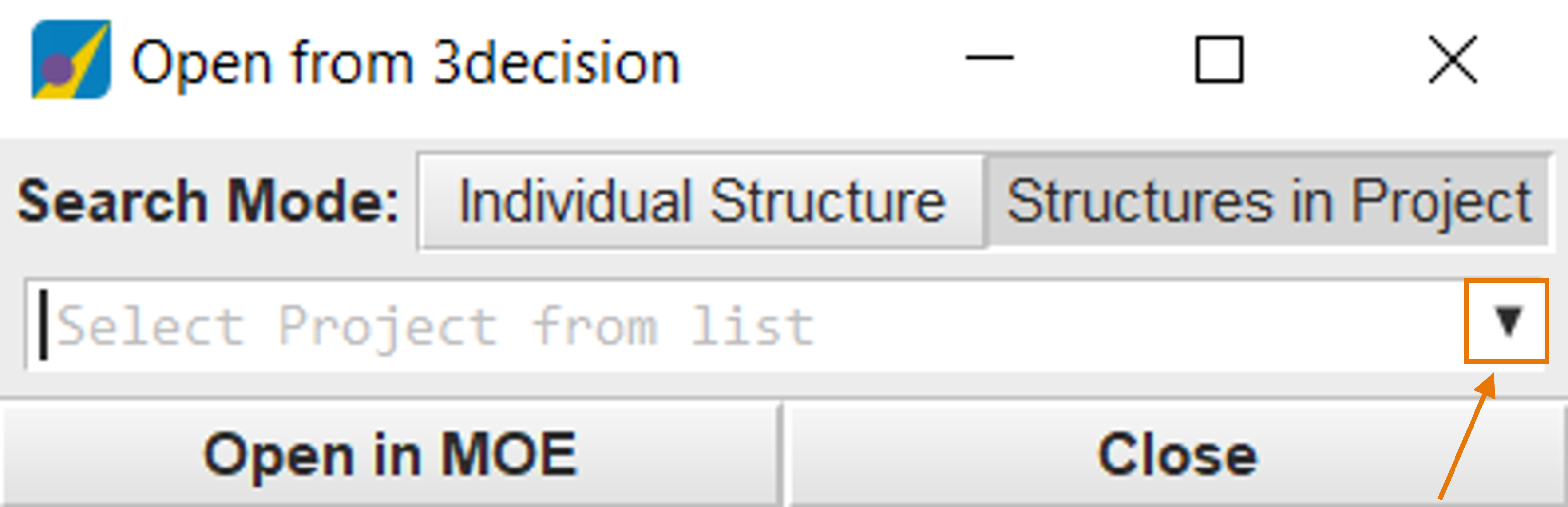
The structures of the project will be loaded into MOE.
Note: In this version, only projects with 100 structures or less can be loaded into 3decision in this way. For larger project, we recommend you download the project from 3decision and use the classical way of importing structures in MOE.
We're currently working on an extended version of the MOE-3decision integration. Please contact us if you want more information.