¶ Introduction
A user group is a list of users that you can save in 3decision. Once a group created, you will be able to add it to projects and structures (as you can do for an individual user) and grant it privileges. In this way, all users included in that user group will share the same privileges on the structure/project.
Additionally, user groups have specific priviliges, to regulate the rights that the users included in the group have on the user group itself. This is a distinct set of privileges and differs from structures/projects privileges. You can find a more comprehensive explanation of privileges in this section of the 3decision documentation.
In this tutorial, you will learn how to create a new user group and regulate user group privileges.
¶ Setting up a new User Group
¶ 1. Create a new user group
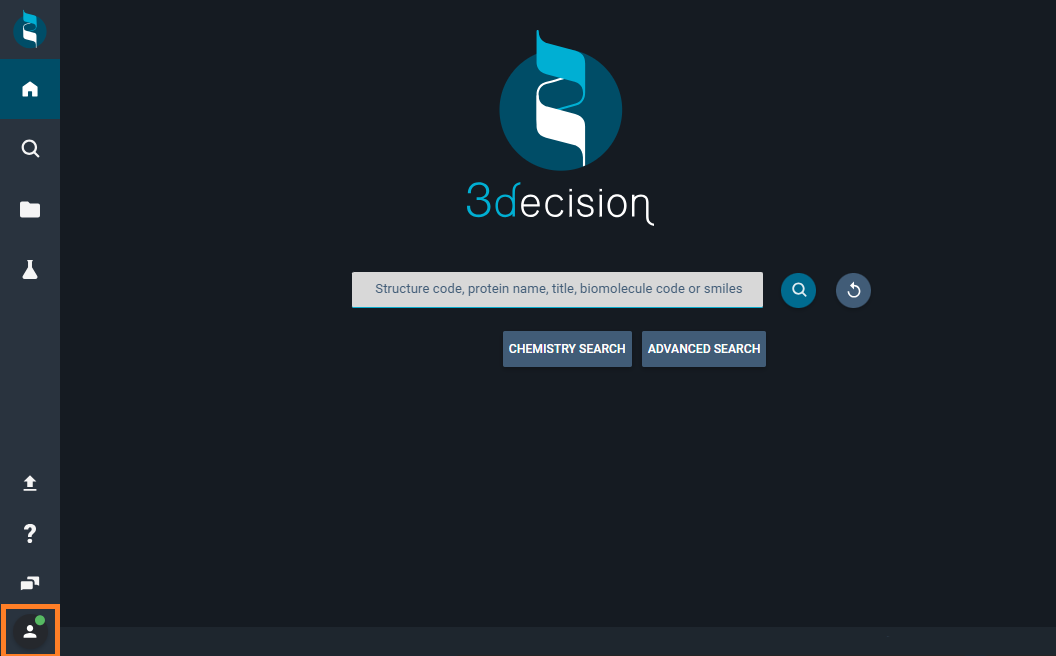
- From the 3decision left-side menu, click on the "My profile" button.
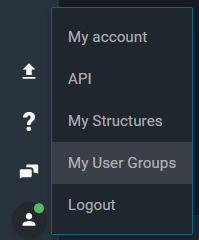
- In the menu, select the option
My User Groups.
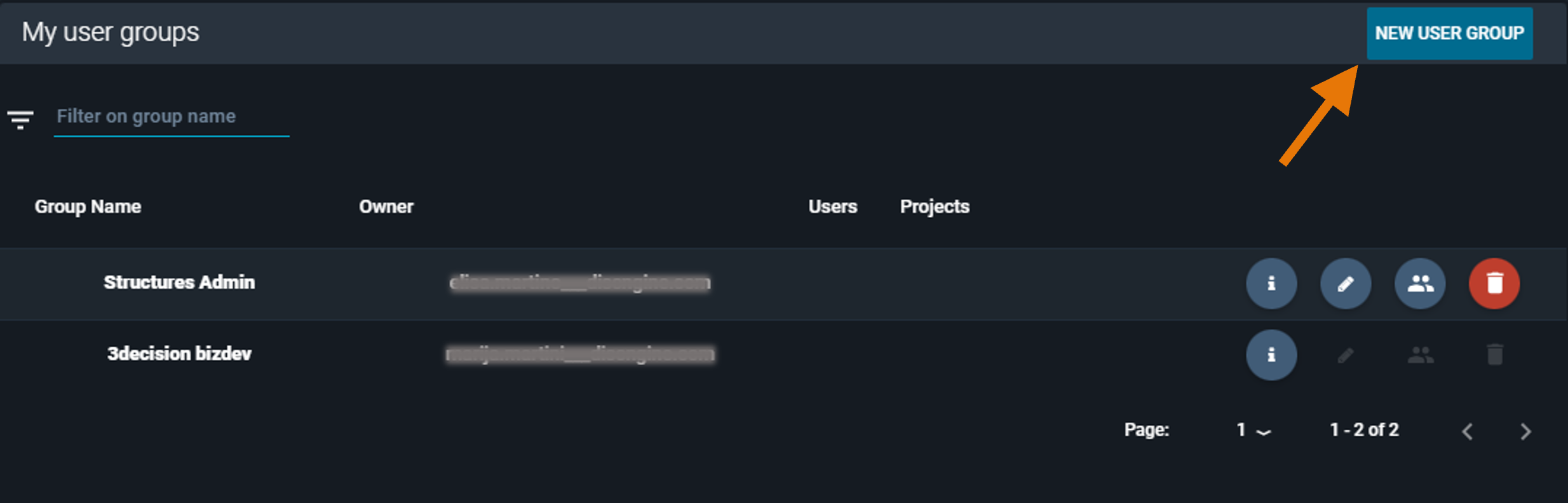
- The "My user groups" window opens. Here you have the list of user groups you are already part of. Click on the blue button "NEW USER GROUP" on the top right of the window.
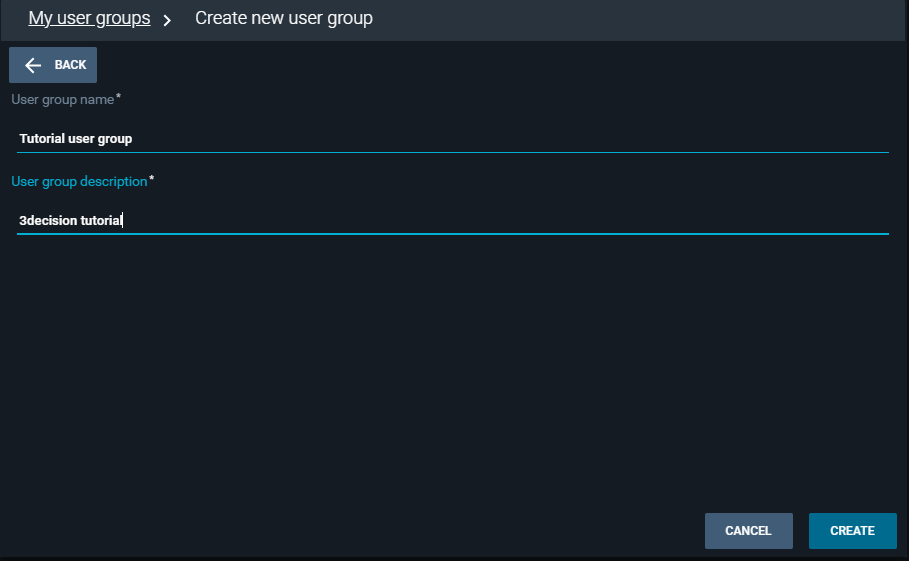
- The window updats to "Create new user group". In the field
User group nametype:Tutorial user group; in the fieldUser group descriptiontype:3decision tutorial.
-
Click on the blue button "CREATE" at the bottom of the window
-
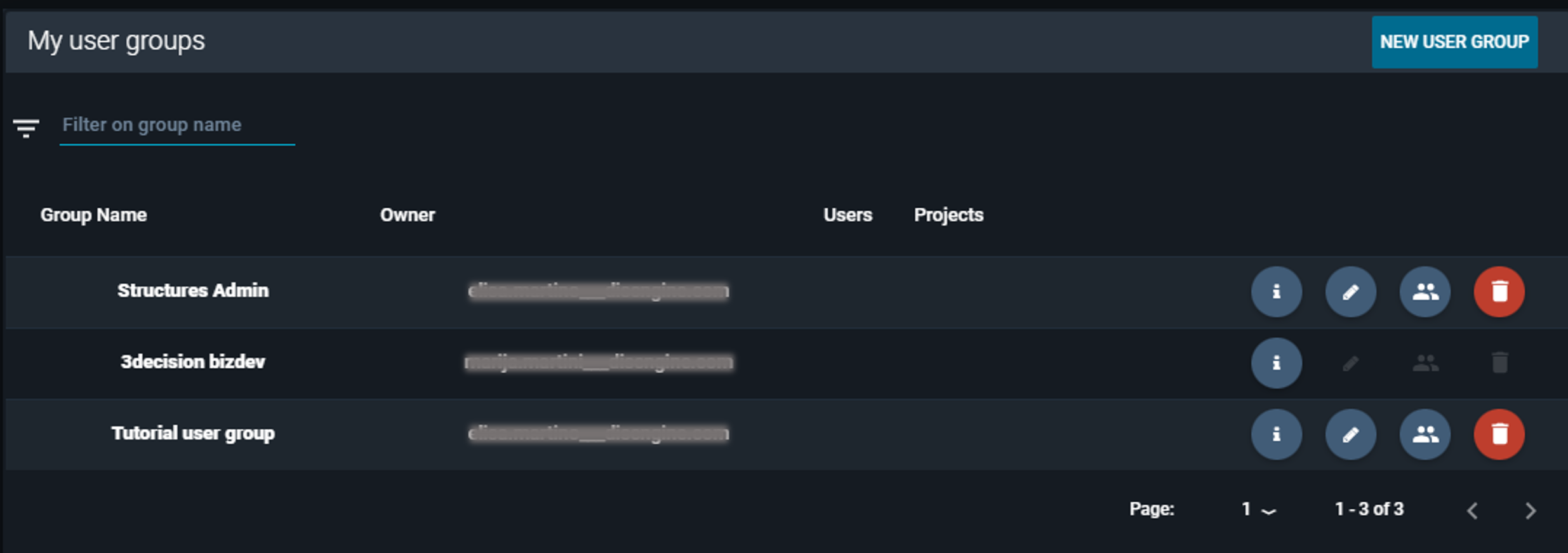
You get a success message, and the new user group is added to the list of your user groups.
¶ 2. Add users to the user group
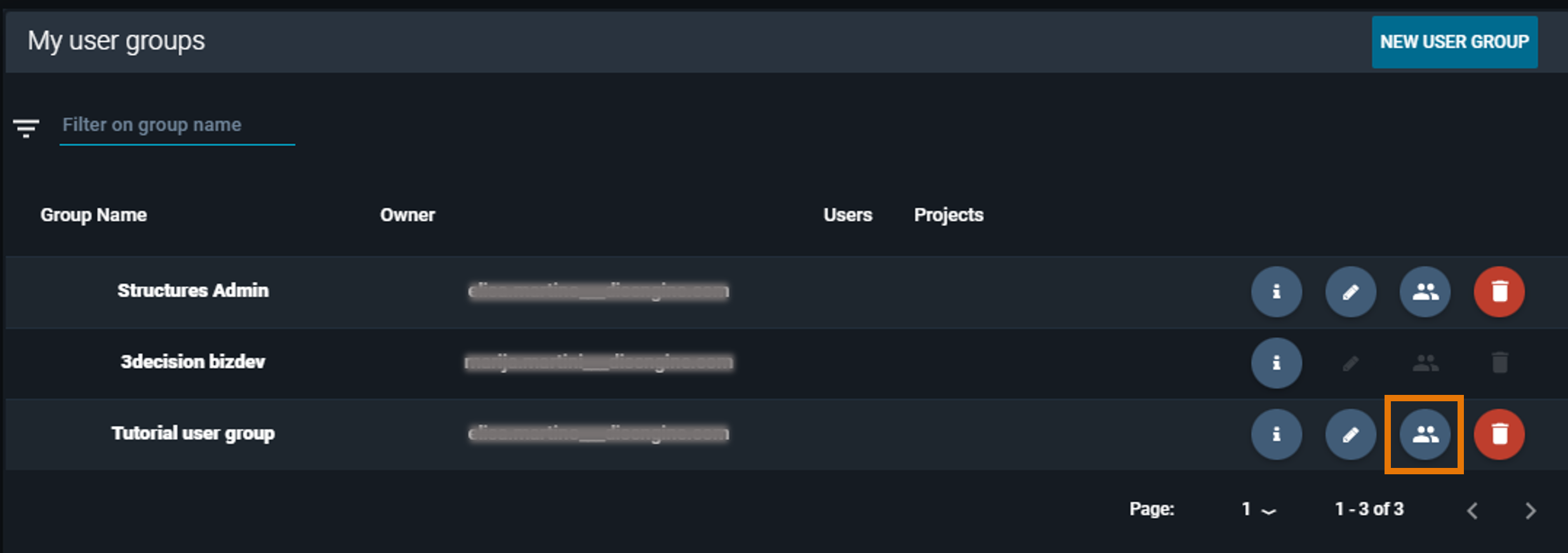
- From the "My user groups" window, click on the "people" icon (manage users in group and their privileges) of the "Tutorial user group".
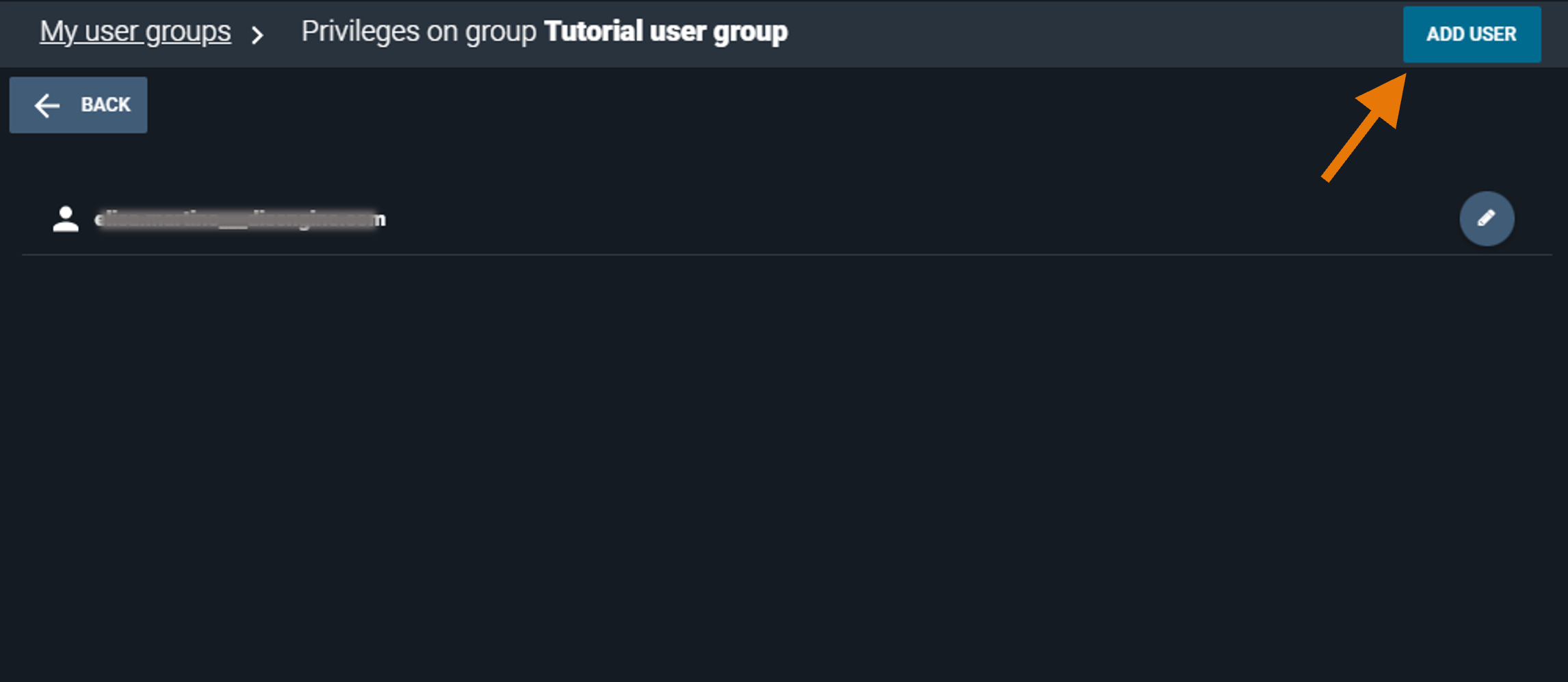
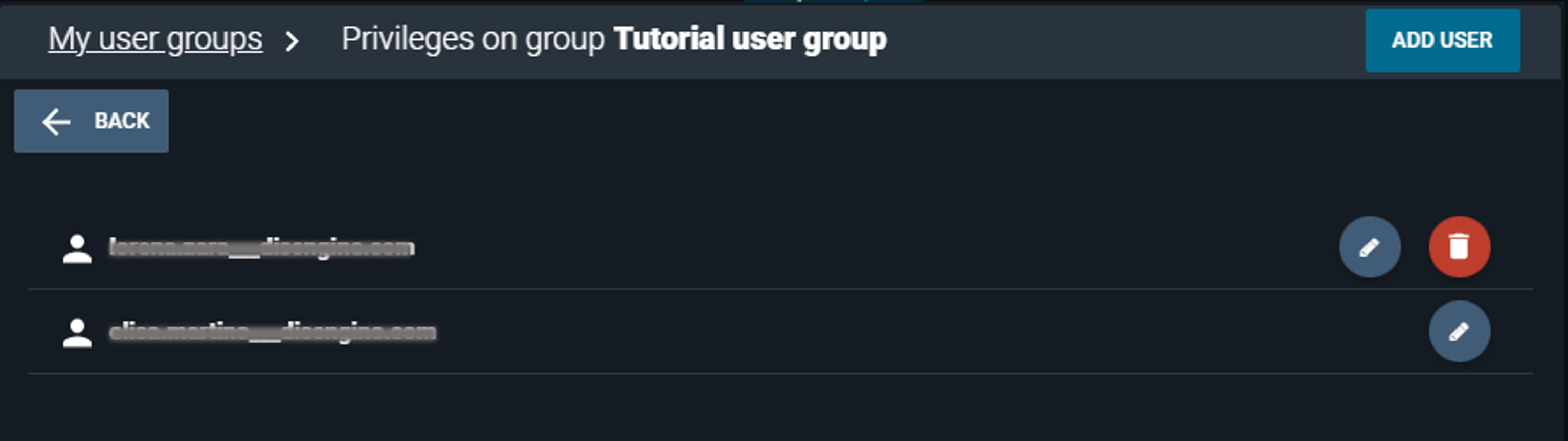
- The "Privileges on group Tutorial user group" window opens. Click on the blue button "ADD USER" at the top right of the page.
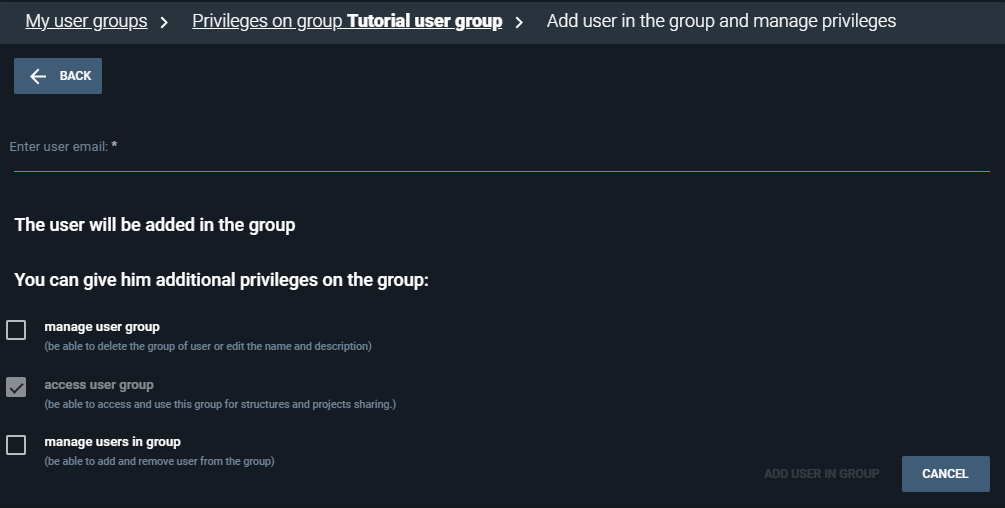
- The "Add user in the group and manage privileges" window opens. In the field
Enter user email, type the email address of another 3decision user. From here, you can regulate the privileges that this user will have on the user group. Any user added to the user group has the right to access the user group by default.
-
Click on the blue button "ADD USER IN GROUP" at the bottom of the window.
-
The user is added to "Tutorial user group".
¶ Regulate User Group Privileges
As described in the previous section, when you add a user to the user group you can already choose which user group privileges to grant.
If you whish to change the privileges at a later time, you can do so as detailed in this section.
- From the 3decision left-side menu, click on the "My profile" button.
- In the menu, select the option
My User Groups. - From the "My user groups" window, click on the "people" icon (manage users in group and their privileges) of the "Tutorial user group".
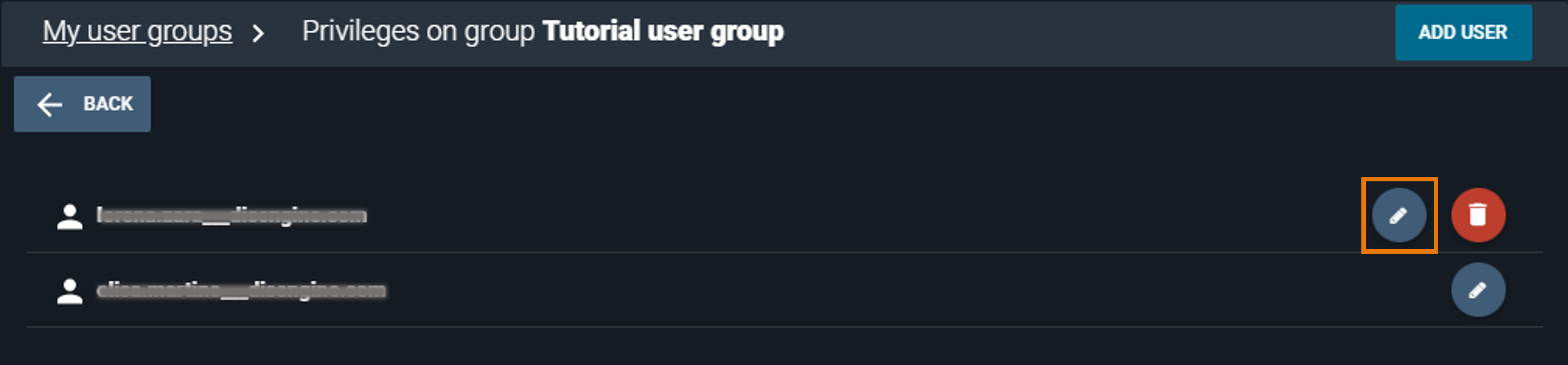
- Click on the "pencil" icon for user whose privileges you want to edit.
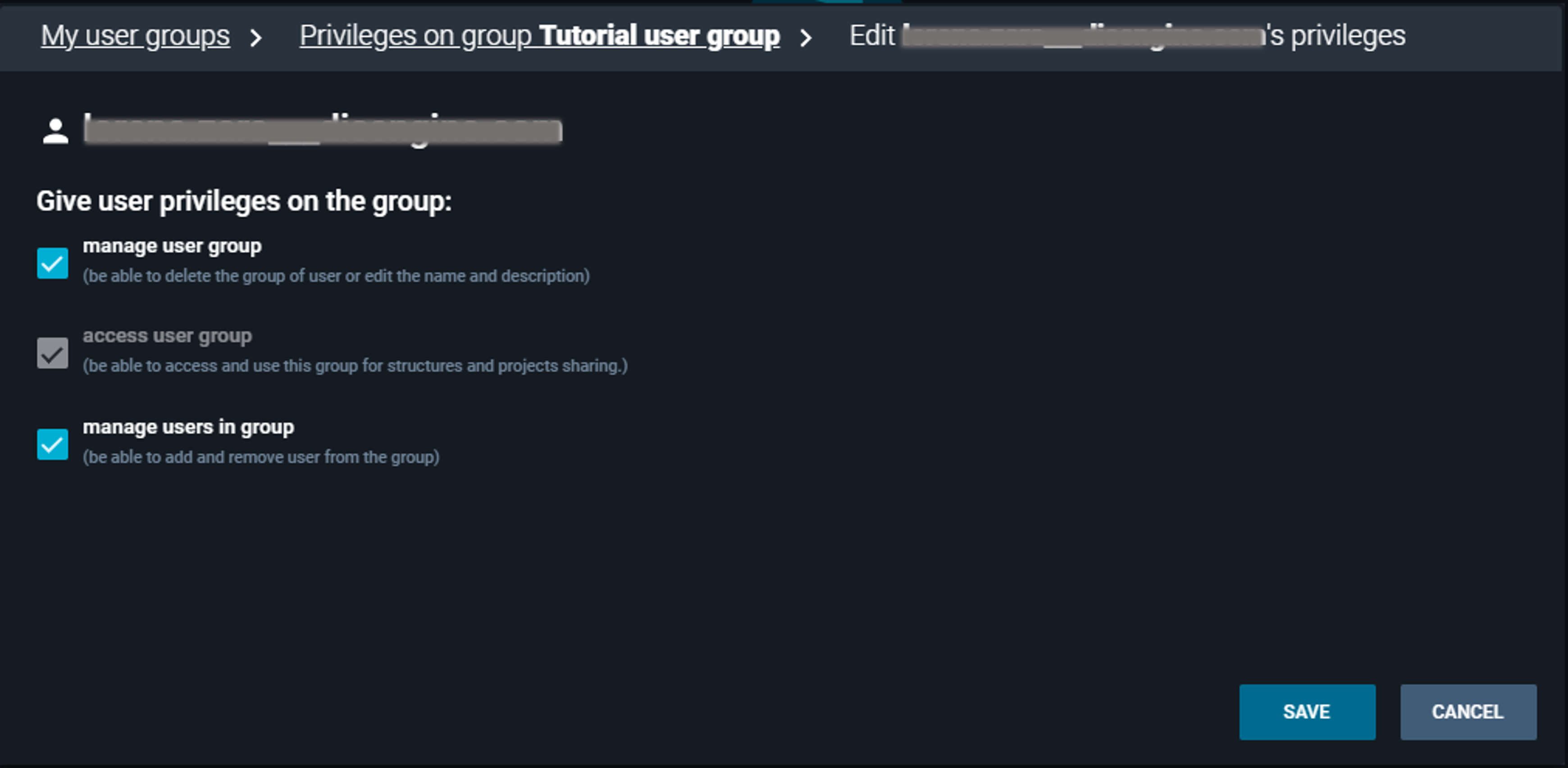
- Toggle on the user group privileges "manage user group" and "manage users in group". Click on the blu button "SAVE" at the bottom of the window.
-
You are redirected to the "Privileges on group Tutorial user group" window, and you get a success message.
-
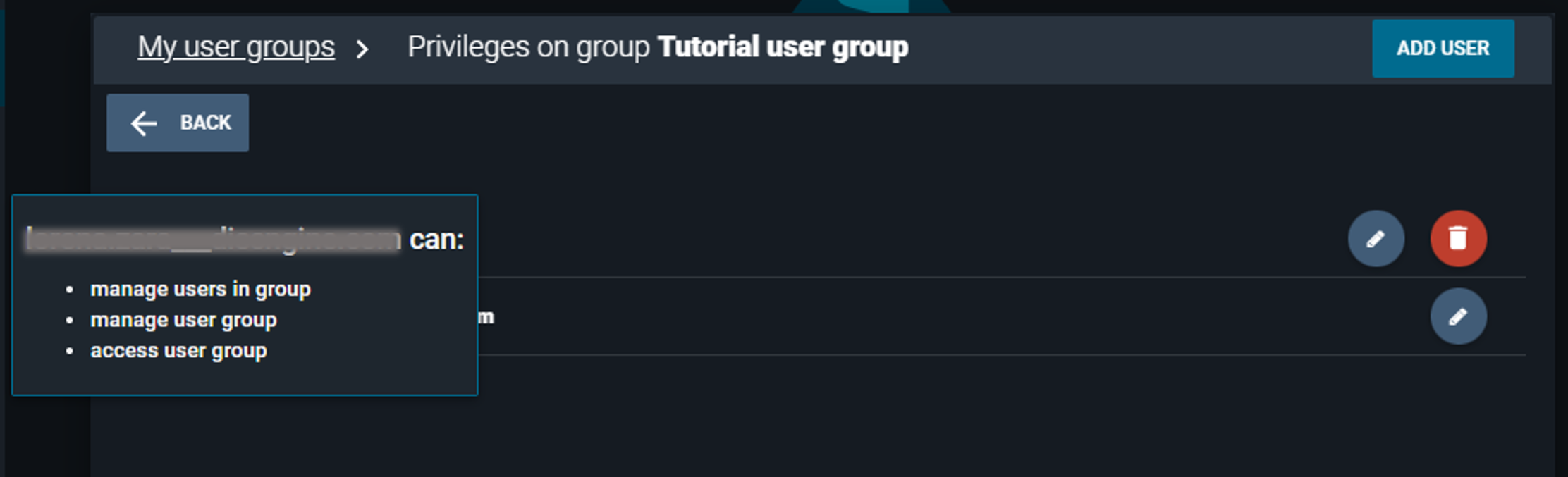
Single, left-click with your mouse on the email address of a user to see which user group privileges they are granted.